
PDF To Word Conversion Timeline: From Upload To DOCX
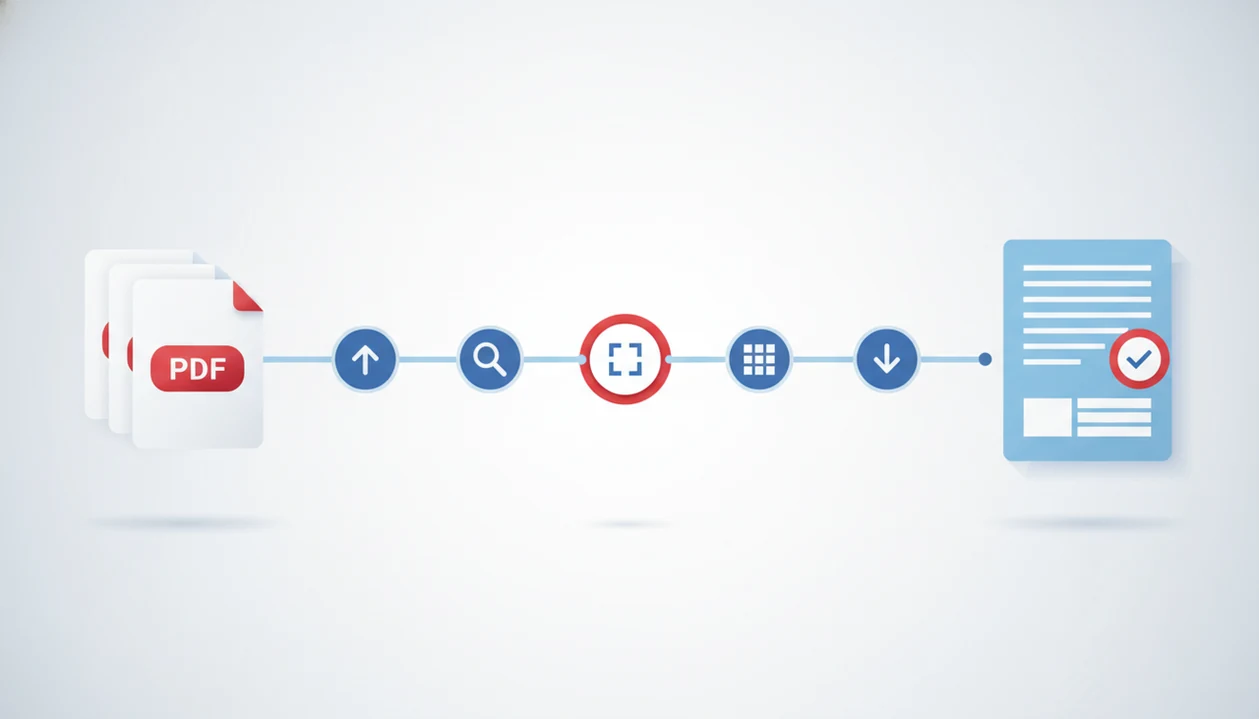
A pdf to word conversion timeline usually runs from upload, file inspection, text detection or OCR, layout rebuilding, DOCX export, download, and final review. Simple digital PDFs may finish in seconds, while scanned, image-heavy, table-heavy, or long files can take several minutes because the converter has to recognize text and reconstruct the document structure.
> Definition: A PDF to Word conversion timeline is the full sequence of steps required to turn a PDF into an editable DOCX file, including upload, parsing, OCR when needed, layout reconstruction, export, download, and review.
- The timeline includes more than the visible converting progress bar: upload, processing, download, and review all count.
- Born-digital text PDFs are fastest; scanned PDFs take longer because OCR must identify text before Word can edit it.
- AI/OCR conversion may add processing time but can reduce manual cleanup for tables, images, columns, and forms.
PDF To Word Conversion Timeline At A Glance
The full PDF to Word timeline starts before processing and ends after review. It includes import, upload, file inspection, OCR if needed, layout rebuilding, DOCX export, saving, opening, and checking the result.
A one-page digital lease may convert almost as fast as you can tap download. A 70-page scan with tables, stamped signatures, and photos will not. Page count matters, but so do file size, images, tables, internet speed, OCR, and server load. That upload spinner beside a deadline is part of the real timeline, not a separate inconvenience.
PDF and Word workflows are common office work. In a 2023 U.S. labor data release, office-based work remained heavily tied to document handling, and many employees move between PDFs and word-processing files during normal tasks source.
The progress bar is only the middle.
How PDF To Word Conversion Works
PDF to Word conversion works by translating a fixed-page document into an editable Word document. A PDF stores positioned objects, such as text boxes, images, lines, and coordinates on a page, while DOCX stores editable flow: paragraphs, styles, tables, lists, and page breaks that can move as you type.
The converter first decides whether the file is born-digital or scanned. In a born-digital PDF, selectable text can usually be extracted directly, then mapped into Word paragraphs and headings. In a scanned PDF, each page is closer to a photo, so OCR, or optical character recognition, must identify letters before the content can be edited. After that, layout reconstruction rebuilds reading order, table rows and columns, images, headers, footers, and page breaks so the DOCX behaves like a document instead of a flat picture. Total time changes because every extra burden adds work: a large file takes longer to upload and process, a blurry scan slows recognition, and complex structure makes the tool spend more time deciding what belongs in each paragraph, cell, or page.
DOCX Conversion Process Behind The Scenes
A DOCX conversion process re-creates an editable Word file from PDF contents; it does not simply rename the PDF extension.
The converter first parses the PDF. It looks for text objects, images, fonts, coordinates, pages, annotations, and embedded elements. In a born-digital PDF, text may already exist as selectable characters. In a scanned PDF, the page is usually an image, so OCR conversion stages are required.
OCR starts with image cleanup, then text recognition, language detection, reading order analysis, and confidence checks. A scanned page with gray shadows near the spine and tilted text can make that step slower and less accurate.
After text is found, the tool rebuilds paragraphs, headings, tables, lists, columns, images, and page breaks. For layout-heavy files, the deeper guide to pdf to word layout preservation explains why the converted copy may not match the original file exactly.
Five Facts About PDF Conversion Time
- Upload and download time count toward the real user timeline, especially on mobile data or hotel Wi-Fi.
- Digital text PDFs can convert much faster than scanned PDFs because the text is already present.
- OCR is required when pages are images of text, and the National Archives notes that poor scans, skew, noise, handwriting, and complex layouts reduce OCR accuracy source.
- Layout complexity can matter more than page count; a short financial report with tables may take longer than plain lecture notes.
- Cloud converters may queue jobs or spend extra time on compression, merge, split, or format detection before DOCX export.
For most users, the slowest file is not always the longest file. It is the file with the most structure to interpret.
Step 1: Upload Speed In The PDF To Word Conversion Timeline
Upload begins when you import, share, select, or scan a file into the converter app. On a phone, that may mean choosing from iCloud Drive, Google Drive, OneDrive, the iOS Files app, Android storage, or a camera scan.
Large PDFs take longer to upload. Weak mobile data, crowded Wi-Fi, and distance to the cloud service can stretch the first stage before conversion even starts. Encrypted, password-protected, or damaged PDFs may also need validation before parsing.
Tools like PDF Converter AI App fit this mobile workflow as a pdf to word converter app for phone-based document tools, but the same upload limits still apply. If the file is 180 MB and your signal drops to one bar, the timeline starts there.
Step 2: Text Detection And OCR Conversion Stages
Does OCR change how long PDF conversion takes? Yes. OCR adds steps, but it is required when the PDF is a scan or photo of text.
Born-digital PDFs usually contain real text objects. The converter can extract those characters, then focus on layout. Scanned PDFs are different. The tool must analyze page images, recognize letters, detect language, infer reading order, and assign confidence scores before Word can edit the text.
Slow cases are easy to spot: skewed pages, low resolution, handwriting, stamps, background noise, and multi-column pages. A signature page cropped from a packet may look fine on screen, but the OCR engine still has to decide where the real text begins.
OCR can increase processing time, but it may reduce manual retyping. For iPhone-specific steps, the how to convert pdf to word on iphone guide covers the same issue in a mobile workflow.
Step 3: Layout Rebuilding In The DOCX Conversion Process
Layout rebuilding is often the hardest stage because PDF and DOCX describe documents differently. A PDF fixes content in page positions; Word expects editable paragraphs, styles, tables, and flowing text.
The converter must rebuild paragraphs, tables, headers, footers, lists, images, page breaks, and columns. Tables, forms, financial reports, legal documents, and academic PDFs take longer because the tool has to detect structure, not just characters. Lecture slides glowing in a dark room may convert quickly if they are simple. A grant form with nested boxes will not.
Some tools only reflow text into a rough Word file. AI/OCR tools perform deeper layout analysis, which can add processing time but reduce cleanup. Adobe’s 2021 Future of Time report found that repetitive document tasks and reformatting remain a common productivity drain, so cleanup time can matter as much as raw speed source.
Step 4: DOCX Export, Download, And File Review
After processing, the converter generates the DOCX file, packages it, saves it, and makes it available for download or sharing. The file may land in Files, Google Drive, OneDrive, local phone storage, or directly in Word.
Review is part of the timeline. Open the DOCX and check headings, line breaks, table cells, images, fonts, and page order. A final file attached to an email is only useful if the recipient can edit it without fixing every paragraph.
A slightly slower conversion can still save time if the DOCX needs less cleanup; McKinsey has estimated that knowledge workers spend about 19% of their time searching for and gathering information source.
Six Steps To Estimate A PDF To Word Conversion Timeline
Use this process to estimate how long PDF conversion takes before you start.
- Check whether the PDF is digital or scanned by trying to select a line of text.
- Reduce file size if the PDF has large images or triggers a phone storage warning.
- Choose OCR when the pages are scans, photos, or image-only exports.
- Start conversion on stable Wi-Fi when the file is large or business-critical.
- Review the DOCX for headings, tables, page order, fonts, and missing images.
- Repeat in smaller batches when converting many files or mixed document types.
Good AI PDF converter tools can convert PDFs to Word, Excel, images, and other formats, plus handle merge, split, compression, and OCR workflows. They still cannot guarantee clean reconstruction of every damaged scan, so save the Word export early and review it before a deadline.
Common Mistakes That Slow PDF To Word Conversion
Assuming every PDF should convert instantly. A clean one-page digital PDF and a scanned real estate packet are not the same job.
Skipping OCR on scanned files. If the PDF is only page images, non-OCR conversion may produce an uneditable Word file or poor text.
Uploading huge files on weak mobile data. A laptop bag wedged under knees is not the ideal place to push a 200 MB PDF through a spotty connection.
Expecting perfect formatting from complex layouts. Tables, forms, columns, and unusual fonts often need manual review.
Judging quality only by speed. Fast output is useful only if the DOCX is editable and readable.
Compress, split, or convert smaller batches when needed. If you only need simple edits, a free pdf to word app may be enough, but larger scanned files usually need OCR and review time.
Limitations
No converter can reliably reconstruct every PDF layout. The converted DOCX is a new editable file, not the original document with Word features magically restored.
- Poor scans, skewed pages, handwriting, artifacts, and low resolution reduce OCR accuracy.
- Complex tables, forms, multi-column pages, and unusual fonts may need manual cleanup.
- Large files may be slowed by mobile network speed, Wi-Fi quality, or cloud server load.
- Sensitive, confidential, or regulated files may require offline workflows instead of cloud conversion.
- Merge, split, compression, and multi-format export can add processing time even when they reduce total human effort.
- Password-protected or damaged PDFs may fail validation before conversion starts.
- Batch conversion can save taps, but one bad file may still slow the set.
For Android workflows, the how to convert pdf to word on android guide explains where files commonly save and what to check after export.
FAQ
How long does PDF conversion take?
Simple digital PDFs may convert in seconds. Scanned, image-heavy, table-heavy, or long PDFs can take several minutes or more.
Why is PDF conversion slow?
PDF conversion is slow when upload speed is weak, the file is large, OCR is required, layout is complex, or the cloud service is busy. Extra tasks like compression or format detection can also add time.
Do scanned PDFs take longer?
Yes. Scanned PDFs take longer because OCR must identify text from page images before the content can become editable in Word.
Does OCR improve Word conversion?
OCR enables editable text from scans and can improve usability. Cleanup may still be needed for poor scans, tables, handwriting, or multi-column pages.
Can tables slow DOCX conversion?
Yes. Tables require structure detection for rows, columns, merged cells, borders, and reading order, so they often take longer to rebuild.
Is longer conversion better quality?
Not always. Longer processing may mean OCR or layout analysis is happening, but output quality depends on the file, scan clarity, and converter method.
Why does formatting change in Word?
Formatting changes because DOCX layout is reconstructed from PDF objects. Fonts, spacing, tables, columns, and page breaks may behave differently in an editable Word file.