
How To Convert PDF To Word On Android And Check The DOCX Output
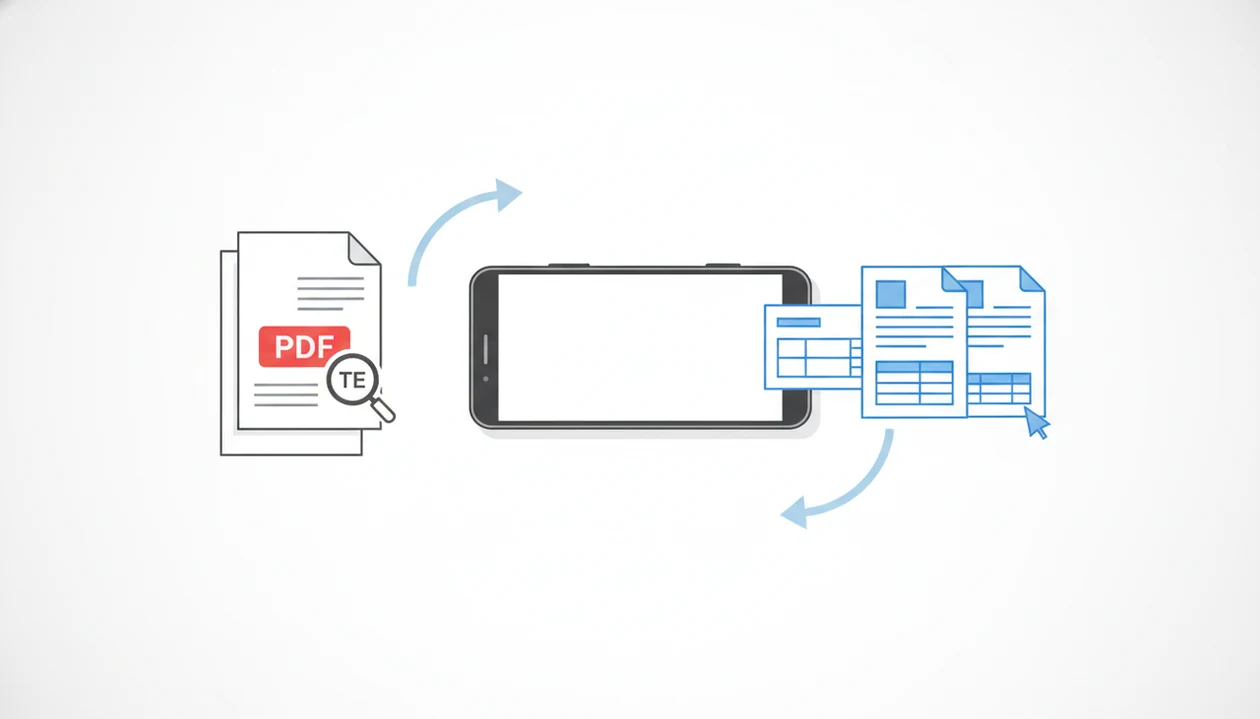
To learn how to convert pdf to word on android, open the PDF in a trusted converter app, choose PDF to Word or DOCX, enable OCR for scanned pages, export the file, then reopen the DOCX to check text, tables, and layout before sharing.
A specialized Android PDF converter can convert PDFs to Word, Excel, images, and other formats when you need fast document tools on your phone.
- Use a PDF converter app, Microsoft 365, or an online converter in Chrome to create a.docx file on Android.
- Turn on OCR when the PDF is scanned or image-only, because normal conversion cannot edit text that is only stored as pixels.
- Always open the exported Word file and check spacing, fonts, tables, headers, and missing text before sending it.
What PDF To Word Conversion On Android Means
PDF to Word conversion on Android means changing a fixed PDF into an editable.docx file directly on the phone. The goal is not just to view the file; it is to correct text, reuse content, update a form, or send someone an editable Word document.
On Android, the PDF may come from Downloads, Google Drive, OneDrive, Dropbox, Gmail, or a converter app’s file picker. Android accounted for about 70% of global mobile operating system market share in 2024, according to StatCounter Global Stats (https://gs.statcounter.com/os-market-share/mobile/worldwide/#yearly-2024-2024-bar), so phone-first document work is not a side case anymore.
A client waiting near the curb will not care where the file came from. They need `LeaseAddendumFinal.pdf` turned into something editable before the meeting moves on.
Android PDF To Word File Requirements
Before you convert pdf to word android files, check the source file and the tool. A clean setup prevents most failed exports, missing text, and surprise upload problems.
- The PDF must be reachable from the Android device, Google Drive, OneDrive, Dropbox, Gmail, or another file location the picker can open.
- The tool can be a trusted PDF converter app, Microsoft 365, Word, or a browser-based PDF to Word converter.
- A text-based PDF can usually convert directly; a scanned or image-only PDF needs OCR first.
- Privacy terms, file-size limits, watermarks, daily caps, and internet requirements matter before you upload.
- A 2022 Forrester Consulting study commissioned by Adobe reported that 72% of business professionals regularly use PDFs for sharing and reviewing documents (https://business.adobe.com/resources/reports/document-productivity-report.html).
The red “attachment too large” banner in Gmail is usually a separate problem. Convert first, then compress if the exported DOCX grows too much.
How Android PDF To DOCX Conversion Works
Android PDF to DOCX conversion works by reading the PDF’s text, images, page structure, font clues, and table boundaries, then rebuilding those pieces into a Word-compatible.docx file. The converter is translating a fixed-layout document into an editable document model.
For scanned PDFs, OCR adds another step. The app detects characters inside page images and creates an OCR text layer, which Word can then edit. A scanned page with gray shadows near the spine and tilted text may still produce odd names or broken lines.
Local conversion happens on the phone, often with fewer upload concerns. Cloud or AI-based conversion sends the file to a server, which may improve recognition, but it also changes the privacy calculation. Simple contracts usually behave better than forms, multi-column pages, or unusual fonts.
6-Step PDF To Word Phone Workflow
Use this workflow when you need an android pdf to docx file and want to avoid losing the original PDF. For most users, converting first and reviewing second is safer than editing the exported Word file blindly.
- Open the PDF converter app, Microsoft 365 app, Word app, or chosen browser tool on Android.
- Pick the PDF from local storage, Downloads, Google Drive, Gmail, OneDrive, Dropbox, or another cloud source.
- Select PDF to Word, Word, or DOCX as the export format.
- Enable OCR if the PDF is scanned, image-only, or has text you cannot select in a viewer.
- Convert the file and save the.docx to a clear folder, such as Downloads or a project folder in Google Drive.
- Open the DOCX in Microsoft Word, Google Docs, or another editor to confirm that text is editable.
A thumb hovering over a PDF attachment is usually the real start of the workflow. The share sheet gets crowded fast.
Android PDF To Word App, Microsoft 365, And Online Tool Choices
The right Android PDF to Word tool depends on file sensitivity, layout complexity, and whether you need more than one conversion task. Statista reports that Google Play generated more than 30 billion app downloads per quarter in recent years (https://www.statista.com/statistics/734332/google-play-app-installs-quarter/), so the productivity app ecosystem is large and uneven.
| Option | Works well for | Watch for |
|---|---|---|
| Specialized PDF converter app | PDF to Word, OCR, Excel export, images, merge, split, compress, and batch tasks | App quality, subscriptions, offline limits |
| Microsoft 365 or Word | Users already editing in Word who need a simple PDF open-and-convert path | Formatting changes and account requirements |
| Online browser tool | One-off conversion in Chrome without installing an app | Upload privacy, file caps, watermarks |
A specialized Android PDF converter fits users who also need Excel export, image conversion, merge, split, compress, batch conversion, and OCR in one place. Those tools improve practical file handling, but they still cannot guarantee perfect layout recovery from every PDF.
For broader app selection, a dedicated pdf to word converter app guide can help narrow the choice.
OCR Settings For Scanned PDF To Word Android Files
Does a scanned PDF need OCR before Word conversion? Yes, if you cannot select the text in the PDF viewer, the page is likely stored as an image, and OCR is required before the Word file becomes editable.
Choose the correct document language before conversion when the app offers that setting. Use the clearest scan you can get, with straight pages, strong contrast, and no blur. Tablet stylus tapping dense formulas? OCR may recognize the typed labels but miss handwritten notes in the margin.
Names, numbers, signatures, stamps, handwriting, and tiny text deserve special checking after export. For scanned class files like `biology-reading-week-4.pdf`, OCR usually works best when the scan is clear, while manual cleanup fits pages with shadows, skew, or mixed handwriting.
How To Check Converted DOCX Output On Android
Checking the DOCX is part of the conversion, not an optional final glance. Open the file in Microsoft Word, Google Docs, or another Android editor before you send it.
- Text editability: Tap a paragraph and confirm that the words can be selected, deleted, and typed over.
- Page layout: Review page breaks, margins, headers, footers, bullets, fonts, and spacing.
- Structured content: Check tables, columns, form fields, images, signatures, and numbered lists separately.
- Original comparison: Keep the PDF open beside the DOCX when possible, or switch between recent apps.
- File naming: Save a renamed copy so the original PDF remains unchanged.
Disclosure pages spread on a car seat are easy to mix up. Rename the export before the final file is attached to an email.
If layout accuracy matters, the pdf to word layout preservation notes explain what usually survives conversion and what often needs repair.
Common PDF To Word Android Mistakes
Most bad PDF to Word phone results come from skipping one check before or after export. The file may “convert” and still be wrong.
- Do not assume every PDF will convert cleanly into Word, especially if it has columns, forms, or custom fonts.
- Do not skip OCR when the PDF is scanned or when text cannot be selected.
- Do not upload confidential files to unknown online tools without checking privacy terms first.
- Do not ignore file-size limits, free plan caps, watermarks, or required sign-ins.
- Do not share the converted DOCX before checking tables, numbers, dates, and formatting.
- Do not overwrite or delete the original PDF.
A tax folder filled with renamed PDFs can become messy quickly. Keep the original and converted copy side by side until the task is finished.
For simple files, a free pdf to word app may be enough, but free limits should be checked before relying on it.
Limitations
Android PDF to Word conversion is useful, but it has real limits. Treat the DOCX as a converted copy that needs review, not as a guaranteed replacement for the original PDF.
- Scanned PDFs need OCR, and OCR can create spelling, number, and layout errors.
- Complex layouts, tables, columns, forms, and unusual fonts may require manual cleanup.
- Large PDFs can fail, take a long time, exceed free limits, or create oversized DOCX files.
- Many free tools need internet access, add watermarks, or restrict daily conversions.
- Online and AI-based converters often upload files to servers, which may be unsuitable for confidential, legal, medical, or regulated documents.
- Offline conversion may improve privacy, but it can be less accurate than cloud-based or AI-enhanced conversion.
- Some converted files open slowly on older Android phones, especially when images remain embedded at full size.
A phone storage warning during compression is a clue. Stop and clear space before running another export.
FAQ
Can I convert a PDF to Word on Android?
Yes. Android can convert PDFs to Word using converter apps, Microsoft 365 or Word, and browser-based PDF to Word tools.
How do I convert a scanned PDF to Word on Android?
Use a tool with OCR, choose the correct language if available, then export the file as DOCX. OCR turns page images into editable text, but errors still need review.
Is PDF to Word conversion free on Android?
Free PDF to Word conversion exists on Android. Free tools may include ads, watermarks, file-size limits, daily caps, or fewer OCR options.
Can I convert a PDF to Word offline on Android?
Some Android PDF tools work offline for local conversion. Many online tools and AI-based converters need internet access because they process files on servers.
How do I convert a PDF to Word on a Samsung phone?
Use the same Android workflow on a Samsung phone: open an app or browser tool, pick the PDF, choose DOCX, convert, and review the output. Samsung files may be stored in My Files, Downloads, Google Drive, or OneDrive.
Why does my converted DOCX look messy after PDF conversion?
The DOCX may look messy because PDFs store layout differently than Word files. Scans, tables, columns, forms, images, and unusual fonts often need cleanup.
Can Google Docs convert a PDF to Word on Android?
Google Docs can open or import some PDFs and let you edit the extracted content. Formatting may change, so it is not always the safest method for layout-heavy files.
Is online PDF to Word conversion safe for private documents?
Online conversion uploads the PDF to a remote service, so it may not be appropriate for private or regulated documents. Review the tool’s privacy policy before uploading sensitive files.