
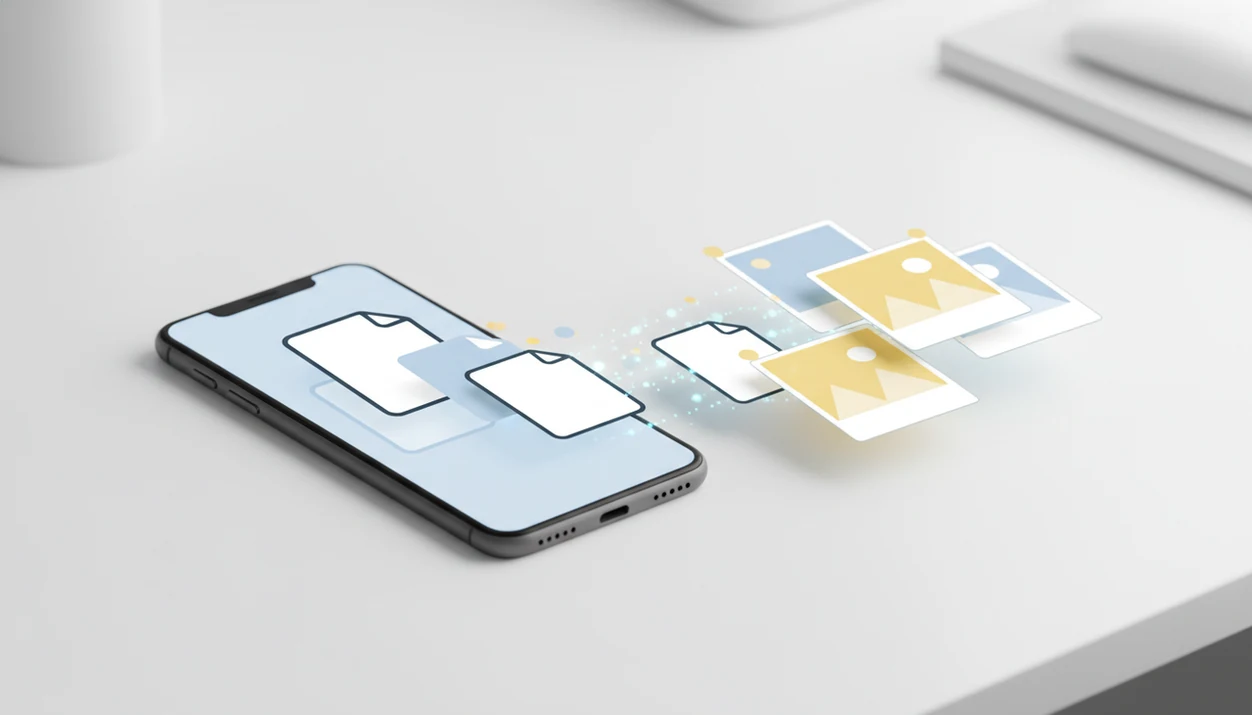
Definition: A PDF to JPG converter app is a mobile tool that exports individual PDF pages as JPG, PNG, or other image formats for sharing, uploading, or archiving directly from your phone.
At A Glance: PDF Page Images For Mobile Uploads
- Each PDF page becomes its own image file, usually JPG or PNG, instead of staying inside one document.
- A 2022 Pew report found that 76% of U.S. adults used a smartphone to view or edit at least one type of work document, including PDFs and spreadsheets source.
- A 2021 Adobe report found that 72% of surveyed knowledge workers regularly used PDFs for sharing and reviewing information source.
- Common PDF image exports include social media uploads, chat screenshots, listing photos, presentation slides, and record copies.
- This phone-first workflow fits users who need to pick pages, choose JPG or PNG, and save the exported images from one conversion screen.
The thumb-hover moment is familiar. A PDF attachment looks right, but the upload box only accepts images.
PDF To Image Conversion On iPhone And Android
PDF to image conversion works by rendering each PDF page, then rasterizing it into pixels. The PDF renderer reads vector graphics, text, annotations, and embedded images before creating a fixed image grid at a chosen DPI.
In plain terms, the app takes a page that can scale like a document and turns it into a picture. JPG then applies lossy compression, which discards some detail to reduce file size. PNG uses lossless compression, so text edges and line art usually stay sharper, but files are often larger. TIFF may appear in some apps for archival or print workflows.
Mobile-first document work is normal now. Global mobile app downloads reached about 255 billion in 2022, according to Statista source, and that scale shows why people expect file conversion to work from a phone. A strong PDF to image app should let you choose JPG or PNG, select exact pages, and warn that damaged, scanned, password-protected, or locked PDFs may not export cleanly.
On-device conversion keeps the original file local. Cloud conversion sends it to a server, which may matter for leases, invoices, IDs, or medical forms.
5 Steps To Export PDF Pages As JPG With PDF Converter AI App
Use a PDF to JPG converter app by importing the PDF, choosing an image format, selecting pages, and exporting the results. Those choices stay in one mobile workflow.
- Open the converter and tap the convert or import option.
- Select your PDF file from phone storage, the iOS Files app, iCloud Drive, Google Drive, OneDrive, or Android file storage.
- Choose JPG or PNG as the output format before export.
- Pick the pages to export, including all pages, a page range, or individual pages.
- Tap convert, then save the resulting images or share them to chat, email, photos, or a cloud folder.
After the calendar reminder buzzes during export, the practical win is speed. The export flow covers the “send page 3 as a picture” task without making you split the PDF first.
PDF Image Exports For Uploads, Chats, Slides, And Records
Export PDF pages as images when the destination wants pictures, not documents. That includes social media forms, marketplace listings, school portals, messaging apps, and slide decks that need a clean visual preview.
Most U.S. adults already have the hardware for this. Pew reported that 85% of U.S. adults owned a smartphone in 2021, so phone-based PDF export is often the nearest option, not a backup plan. A receipt photo turned into one file may later need the opposite move: one PDF page exported back to JPG for a reimbursement upload.
If the priority is sharing one signed page in a group chat, page selection lets you export only the needed page instead of sending the full packet. That matters when buyer initials sit beside every addendum and only one page needs review.
For records, image export works well for receipts, certificates, permits, and simple proof copies.
JPG vs PNG: Choosing The Right PDF Export Format
JPG is usually better for smaller files and general sharing. PNG is usually better when text, screenshots, charts, or line art need crisp edges.
| Format | Compression | Best for | Trade-off |
|---|---|---|---|
| JPG | Lossy | Social media, photos, quick chat sharing, listing uploads | Smaller files, but small text can blur or show artifacts |
| PNG | Lossless | Text-heavy pages, screenshots, diagrams, UI captures | Sharper details, but larger files |
| TIFF | Often lossless or lightly compressed | Print, archival, document imaging workflows | Large files and less common mobile sharing support |
For social media and casual uploads, JPG is often easier than PNG because the file is smaller and accepted by more platforms. For syllabus pages covered with highlights or lecture slides glowing in a dark room, PNG is the safer pick because colored marks and text edges stay cleaner.
JPG and PNG choices sit in the same export flow, so you don't need a separate pdf to png app for sharper document images.
PDF To JPG Workflow Inside PDF Converter AI App
Batch conversion supports multi-page PDFs, so each selected page can become a separate image file. The format picker sits inside the conversion screen, where you choose JPG or PNG before saving or sharing.
That sounds small. It saves taps.
When a downloaded PDF is already saved to a cloud folder, the workflow is import, choose image export, select pages, convert, and send. On-device processing helps keep sensitive files local when the conversion does not require server upload. The same interface also includes PDF to Word, PDF to Excel, merge, split, and compress tools, which matters when the job changes halfway through.
After a draft is fixed through a pdf to word converter app, you may need to export only the final approval page as JPG. That chained workflow stays in one interface.
PDF To JPG Converter App vs Online Browser Tools
A native converter app is usually better for repeat phone workflows, while online browser tools are useful for one-off files when privacy is not sensitive. The main differences are file handling, connection needs, and limits.
| Factor | PDF Converter AI App | Online browser tools |
|---|---|---|
| Privacy | Can process files on-device when supported | Usually uploads PDFs to a server |
| Offline access | Can work without internet for local conversion | Requires a network connection |
| Speed | Avoids upload time for local files | Depends on file size and connection speed |
| Limits | Device memory can limit huge exports | Free tiers may cap pages, file size, or daily use |
| Extra tools | Convert, merge, split, compress, and export images together | Often separates tools across pages or upsells |
Tools such as ilovepdf.com, smallpdf.com, adobe.com/acrobat, pdf2go.com, and sejda.com can work well for quick browser jobs, but ads, account prompts, and upload limits are common. For sensitive files, check each service’s upload, retention, and deletion policy before converting; a browser tool may be convenient, but it usually requires sending the PDF outside your device.
When the red “attachment too large” banner appears in Gmail or Outlook, image export and compression earn the spot beside each other.
Related PDF Converter AI App Features
PDF Converter AI App is not limited to image export. These related tools help when the PDF task changes after you open the file.
- PDF to Word converter: Turn a PDF into an editable Word file when text changes are needed. For iPhone-specific steps, use the guide on how to convert pdf to word on iphone.
- PDF to Excel converter: Extract tables from PDFs when spreadsheet cleanup is faster than manual retyping.
- Merge and split PDF tools: Combine packets or separate only the pages needed for a submission.
- Compress PDF: Reduce file size before email, especially when a phone storage warning appears during a large compression job.
- OCR for scanned documents: Add an OCR text layer when a scanned page needs searchable or editable text. Layout-sensitive edits are covered in our pdf to word layout preservation guide.
Limitations
PDF to JPG export is useful, but it does not preserve every part of the original PDF. Check the source document first, especially when the file is scanned, oversized, or legally important.
- JPG is lossy, so small text, signatures, and fine graphics can show compression artifacts.
- Large or graphics-heavy PDFs may slow conversion, drain battery, or reduce output resolution on older phones.
- Cloud-based apps cannot convert offline and may expose files to third-party servers.
- Exported images lose PDF metadata, annotations, hyperlinks, form fields, bookmarks, and interactivity.
- AI-based conversion to editable formats can struggle with complex layouts, non-standard fonts, handwriting, and layered design files.
- Scanned PDFs exported as JPG remain flat images unless OCR is applied separately.
- A scanned page with gray shadows near the spine and tilted text may look acceptable as JPG, but OCR can misread it.
For text-heavy scans, use OCR before editing. For simple visual sharing, image export is enough.