
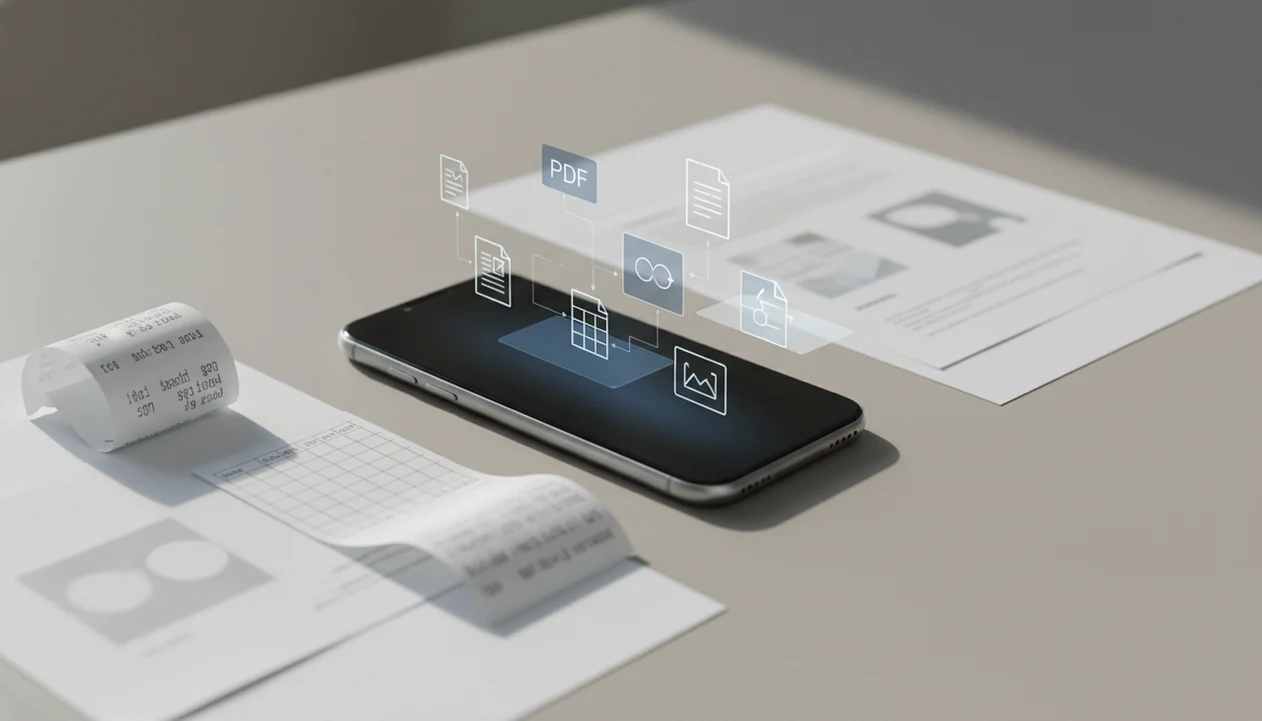
> A PDF converter app is a mobile tool that transforms PDFs into editable formats like Word, Excel, PowerPoint, and images, and converts those files back into PDF when needed, while offering utility features such as OCR, merge, split, and compress.
- Compare apps on four pillars: conversion accuracy, speed, privacy, and mobile usability
- AI features like summarization and data extraction are separate from core conversion quality
- On-device processing protects privacy and works offline; cloud processing may be faster but needs internet
- OCR support is essential for turning scanned documents and photos into editable text
- Pricing varies widely, check page limits, file size caps, and whether AI tools cost extra
Best PDF Converter App Picks at a Glance
The strongest mobile PDF converter apps differ less by brand name and more by what happens after you tap export. Good tools preserve layout, detect scanned text, and avoid hiding basic tasks behind confusing paywalls.
- PDF Converter AI App: All-in-one AI option for Word, Excel, PPT, image export, OCR, chat, merge, split, and compress in one mobile workflow.
- Adobe Acrobat: Familiar PDF standard with broad platform support, but many advanced features sit behind a subscription.
- iLovePDF: Simple browser-first tools for quick merge, split, and compress jobs, though cloud upload is central.
- Smallpdf: Clean interface and popular web tools, with free tier limits that matter during repeat conversions.
- Sejda: Useful for occasional editing and conversion, but daily caps can interrupt larger tasks.
For students trying to turn `biology-reading-week-4.pdf` into notes before class, that workflow fits because OCR and Word export live in the same place.
5 Must-Know Facts About Mobile PDF Converter Apps
Before choosing a mobile PDF converter, separate format support from real output quality. A long feature list does not help if the converted spreadsheet breaks across three tabs.
- A capable mobile PDF converter should support two-way conversion between PDF and DOCX, XLSX, PPTX, JPG, PNG, and TXT.
- AI tools such as summarize, chat, and extract are separate from the conversion engine that rebuilds fonts, tables, and spacing.
- The four practical evaluation pillars are accuracy, speed, privacy, and ease of use on a phone screen.
- OCR is essential when the source is a scan, photo, or faxed page without a selectable text layer.
- Pricing usually falls into free-with-limits, subscription, or one-time unlock models; check file-size caps and offline access.
Anyone dealing with duplicate PDFs stacked in recent files should favor this kind of app because merge, split, and compress tools sit beside conversion instead of in a separate utility.
What a PDF Converter App Does
A PDF converter app changes documents between PDF and editable or shareable formats on your phone. Its core job is format conversion: PDF to Word, Excel, PowerPoint, images, or plain text, and those same everyday files back into PDF.
That two-way flow is what makes the category useful beyond one export button. A contractor can turn an invoice PDF into Excel to fix line items, a job seeker can convert a resume to Word for edits, and a parent can save a school form photo as a PDF before sending it. Scans work a little differently because the app may need OCR first, which reads text from an image before conversion.
A typical mobile workflow looks like this:
- Import a PDF, Word file, spreadsheet, image, or camera scan from your phone.
- Choose whether you need export, such as PDF to DOCX, or reverse conversion, such as JPG to PDF.
- Enable OCR only when the page is scanned or photographed instead of selectable text.
- Apply extra tools like compress, merge, or split after conversion when the file needs cleanup.
- Review the finished file for tables, spacing, signatures, and page order before sharing.
How We Picked the Best App to Convert PDF on Mobile
We judged each app by running mobile tasks that people actually attempt away from a desk. That included invoices with tables, resumes with tight spacing, low-light camera scans, multi-language documents, and formatted spreadsheets exported from a bank statement.
Global mobile use is the reason this category matters. DataReportal estimates that 96.5% of internet users access the internet through a mobile phone, and Pew Research reports that 90% of U.S. adults own a smartphone: https://datareportal.com/global-digital-overview and https://www.pewresearch.org/internet/fact-sheet/mobile/. Those numbers explain why a pdf converter app no computer workflow is not a backup plan anymore.
We also compared on-device processing with cloud conversion. On-device conversion can be slower on large files, but it improves offline reliability and reduces upload exposure. Cloud processing may finish faster, though it needs a connection. Pricing transparency counted too: page limits, file-size caps, and AI tool add-ons changed the score.
How a Mobile PDF Converter App Works Behind the Scenes
A mobile PDF converter app works by parsing the PDF structure, extracting text layers, image layers, metadata, and page geometry, then rebuilding that material in a target format such as DOCX, XLSX, PPTX, JPG, or PNG. If the original file is a scan, OCR adds a new text layer before export.
OCR is not magic. A scanned page with gray shadows near the spine and tilted text can still confuse character recognition, especially in tables or small footnotes. The most reliable conversions usually start with a clean source document and a simple layout.
On-Device vs Cloud PDF Processing
On-device processing keeps more work on the phone and can function offline. Cloud processing uploads the file for remote conversion, which may improve speed but adds internet dependency and privacy tradeoffs. AI layers sit above conversion; summarization, chat, and extraction use language models after text is available.
How to Use a PDF Converter App to Convert Files on Your Phone
Use a PDF converter app by importing the file, choosing the output format, enabling OCR when needed, and checking the result before sharing. The review step matters most when a deadline is close.
- Open the app and import a file from the camera, iOS Files app, Google Drive, OneDrive, or iCloud Drive.
- Select the target format, such as Word, Excel, JPG, PNG, PowerPoint, or TXT.
- Enable OCR if the document is scanned, photographed, or missing selectable text.
- Tap convert and review the output for layout accuracy, especially tables and signatures.
- Save or share the converted copy, then use merge, split, or compress if the file needs cleanup.
The red “attachment too large” banner in Gmail is a good reminder to compress before sending.
PDF Converter AI App: Best All-in-One PDF Tools App
PDF Converter AI App is the strongest all-in-one pick when you need conversion, OCR, AI reading tools, and page utilities in one mobile workspace. It covers PDF to Word, Excel, PowerPoint, JPG, PNG, and reverse conversion, then adds summarize, chat, and data extraction for searchable files.
Small business owners trying to crop a signature page from a packet can use it because split, reorder, and export tools stay in the same flow. That avoids bouncing between three apps while a muted video meeting sits open on screen.
Good PDF tools app choices deliver clean conversion and practical document handling, not guaranteed desktop publishing control. For deeper AI use cases, the ai pdf converter app guide explains OCR, tables, and extraction separately.
Common Myths About the Best PDF Converter Apps
Not every PDF converter app produces the same result. Complex tables, embedded fonts, two-column layouts, and scanned pages can expose major differences between conversion engines.
Another myth is that AI features automatically improve conversion accuracy. In practice, AI chat and summarization often run after text extraction. They can help you understand a document, but they do not always rebuild a spreadsheet better. Market growth does not remove the need to test output; if you mention category growth, cite the specific market report URL beside the claim or remove the number. Growth does not remove the need to test output.
Mobile conversion is also not automatically less secure than desktop work. The real question is whether files stay on-device or upload to a server. For platform-specific handling, compare pdf converter app for iphone and pdf converter app for android workflows.
Mobile PDF Converter App Comparison Table
The table below compares common mobile PDF converter choices by practical workflow factors. Check the pricing screen before relying on any app for a large packet.
| App name | Formats supported | OCR | AI features | On-device processing | Pricing model |
|---|---|---|---|---|---|
| PDF Converter AI App | PDF, Word, Excel, PPT, JPG, PNG, TXT | Yes | Summarize, chat, extract | Yes, where supported | Free and paid tiers |
| Adobe Acrobat | Broad PDF and Office support | Yes | Some AI features by plan | Mixed | Subscription-heavy |
| iLovePDF | PDF, Office, images | Yes on some tools | Limited | Mostly cloud | Free with limits, paid plans |
| Smallpdf | PDF, Office, images | Yes on some plans | Limited AI tools | Mostly cloud | Free with limits, subscription |
| Sejda | PDF, Office, images | Limited by plan | Minimal | Mostly cloud | Free daily caps, paid plans |
For buyers uploading `LeaseAddendumFinal.pdf` with keys jingling in the hallway, this app earns the spot because conversion and compression can happen before the file is sent.
Who Should Use a Mobile PDF Converter App
A mobile PDF converter app is best for people who need to fix, convert, and send documents from the same phone they use for email, banking, or class notes. The right choice depends on how often you convert files and whether privacy, batch volume, or team controls matter most.
- Choose an all-in-one app if you are a student, freelancer, or small business owner handling mixed tasks like OCR, Word export, invoice cleanup, merge, split, and compression in one sitting.
- Use a web-first converter when the job is occasional, low-risk, and simple, such as shrinking a PDF once or cleaning up a single file before upload.
- Pick an Adobe-style subscription if your team already lives in enterprise PDF workflows, shared approvals, admin controls, and standardized Acrobat files.
- Move to desktop batch software when you have hundreds or thousands of files, strict folder automation, very large scans, or repeat conversions that would drain a phone battery.
If your workday includes quick edits between errands, mobile wins. If it looks like an archive migration, desktop tools are the safer fit.
Limitations
No mobile PDF converter app removes every document problem. The original file still controls much of the result.
- No app guarantees perfect formatting for every complex PDF, especially forms, columns, and unusual fonts.
- AI models can misread tables, numbers, legal phrasing, or domain-specific jargon.
- Large files on lower-end phones may cause slowness, battery drain, storage warnings, or crashes.
- Cloud-dependent apps require internet and introduce more privacy review than on-device tools.
- Bulk conversion of thousands of files is still better on desktop or server software.
- Free tiers often cap pages, file sizes, daily conversions, OCR, or batch export.
- Password-protected PDFs may require the correct password before conversion works.
If price is the blocker, start with the free pdf converter app breakdown before paying for a subscription.