
PDF To Word Layout Preservation: Why Formatting Changes
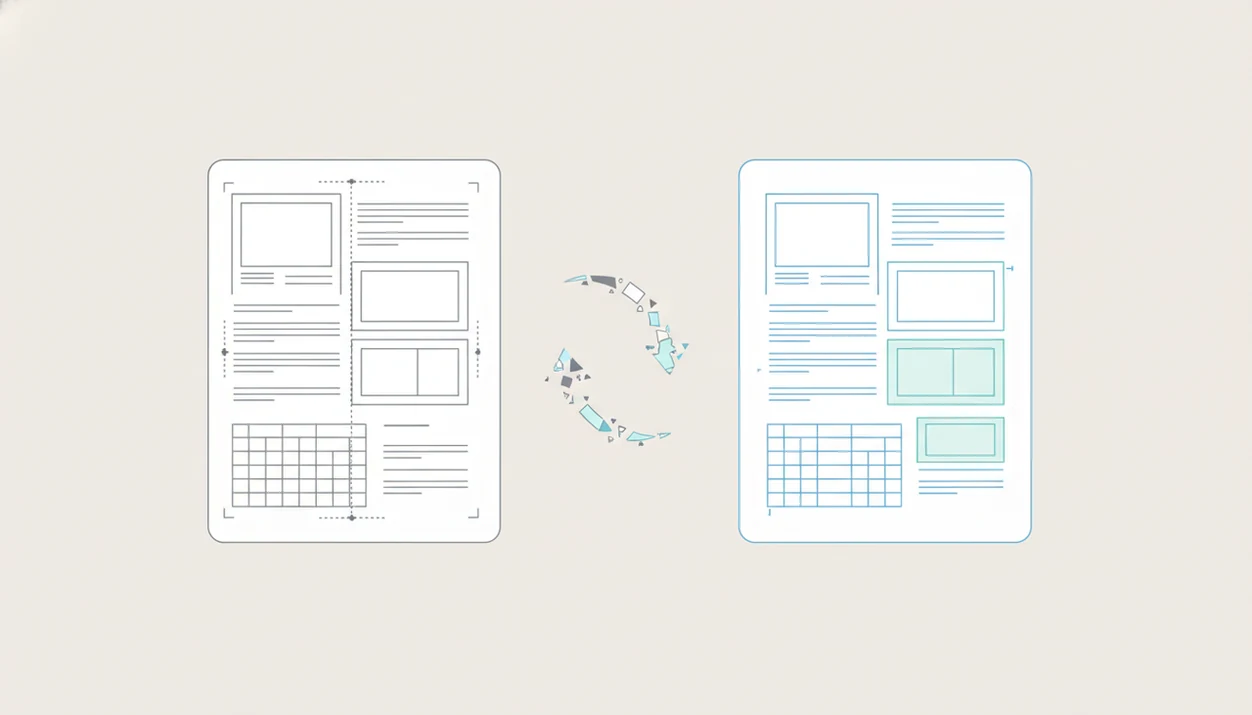
Quick answer: pdf to word layout preservation is never guaranteed because PDFs store fixed page appearances while Word rebuilds content into editable, reflowable DOCX structure. The best results come from using OCR when needed, choosing the right conversion mode, and reviewing tables, fonts, images, and spacing after conversion.
> Definition: PDF to Word layout preservation means converting a fixed-layout PDF into an editable DOCX while keeping fonts, spacing, images, columns, tables, and page structure as close to the original as possible.
- PDF loses formatting because PDF and Word use different layout models: fixed pages versus reflowable editing.
- Scanned PDFs need OCR before editable Word text can be created.
- Tables, columns, forms, wrapped images, special fonts, and low-quality scans cause the most DOCX layout issues.
PDF To Word Layout Preservation At A Glance
Exact PDF to Word layout preservation is difficult because a PDF behaves like a fixed page, while Word behaves like an editable document that reflows as content changes. The converter has to rebuild structure that may not exist in the PDF file itself.
Fonts, columns, scans, tables, embedded images, and OCR quality all affect the result. A clean one-page letter usually converts better than a brochure with sidebars and layered graphics.
The practical choice is often visual fidelity versus easy editing. Retain-layout conversion may look closer, but it can create many text boxes. Flowing-text conversion is easier to edit, but page breaks and image positions may move.
Mobile PDF converters can help with everyday PDF to Word and OCR workflows, but no converter can promise a flawless DOCX for every source file.
Before You Convert A PDF To Word
Before you convert a PDF to Word, inspect the source file and decide what a successful DOCX should do. A file prepared for visual matching needs different handling than one meant for fast rewriting.
- Check whether the PDF is scanned, text-based, locked, or mostly built from images by trying to select text and noting any password or permission prompts.
- Decide whether matching the original page matters more than easy editing. If the document is a resume, invoice, or form, visual fidelity may win; if it is a draft report, cleaner editable paragraphs may matter more.
- Install any required fonts before opening the converted DOCX, especially for branded templates, legal packets, or design-heavy files.
- Make a backup copy before OCR, compression, page cleanup, or repeated exports, so the original PDF stays untouched if the conversion gets worse.
- Avoid uploading confidential PDFs to an online converter unless the provider’s privacy, retention, encryption, and compliance terms meet your requirements.
This short check reduces surprises and gives you a clean fallback if the first conversion does not hold the layout well.
How PDF To Word Formatting Works Behind The Scenes
PDF to Word formatting works by analyzing a fixed PDF canvas and rebuilding it as Word paragraphs, tables, styles, sections, and reflowing text. The converter is not simply copying a hidden Word file back out of the PDF.
A PDF stores positioned text, images, vector shapes, font data, and page coordinates. Word DOCX stores document logic: paragraph runs, headings, tables, lists, margins, headers, footers, and section breaks. That difference is why a syllabus PDF covered with highlights can look steady on screen, then open in Word with uneven spacing.
For source context, the Library of Congress describes PDF as a page-oriented format for preserving document appearance (https://www.loc.gov/preservation/digital/formats/fdd/fdd000030.shtml), while Microsoft’s DOCX documentation describes Word files as structured Office Open XML packages with document parts and markup (https://learn.microsoft.com/en-us/openspecs/office_standards/ms-docx/).
Converters infer reading order, columns, tables, headings, and paragraph boundaries from page geometry. Research on document layout analysis shows that automated systems can still misread complex mixed-layout pages, especially multi-column pages with images and irregular spacing.
Small errors stack quickly. One wrong column boundary can turn a clean page into a confusing edit.
Five Facts About Why A PDF Loses Formatting In Word
- PDF and Word use different layout systems. PDF is a fixed-page format, while Word is built for editable, reflowable text.
- Scanned PDFs require OCR for editable text. Without optical character recognition, an image-only PDF becomes a Word file containing pictures of pages.
- Columns, tables, forms, and wrapped images are fragile. These elements require the converter to infer relationships from position, spacing, and borders.
- Converter quality and settings affect the result. Retain-layout, flowing-text, OCR language, and image handling choices can change the DOCX output.
- Manual cleanup is normal for professional files. For resumes, contracts, invoices, and client packets, reviewing headings, tables, margins, and page numbers is part of the workflow.
For longer mobile workflows, a pdf to word converter app can reduce file handling, especially when the source PDF is already stored in iCloud Drive, Google Drive, or OneDrive.
How To Use PDF To Word Layout Preservation Settings
Use layout settings based on the document’s purpose, not just the file type. A form that must look unchanged needs a different conversion choice than a report that needs heavy editing.
- Check whether the PDF is text-based or scanned by trying to select a sentence in the file.
- Choose retain-page-layout mode for resumes, invoices, forms, and visual pages where appearance matters most.
- Choose flowing-text mode for reports, essays, contracts, and drafts where editing is more important than exact page matching.
- Run OCR on scanned files before exporting to Word, especially when the scan has tilted text or gray shadows near the spine.
- Review fonts, tables, columns, images, headers, footers, page numbers, and footnotes in the DOCX before sharing it.
- Save a clean converted copy before manual edits, so you can restart without reconverting the original file.
A mobile converter is useful when the document is already on your phone or cloud drive. Conversion, OCR, merge, split, and compression tools can reduce file handling time, but they do not guarantee exact Word formatting.
Retain Page Layout Vs Flowing Text For PDF To Word Formatting
Retain page layout and flowing text solve different PDF to Word formatting problems. Choose retain layout when the DOCX must resemble the PDF, and choose flowing text when the document must be easy to edit.
| Conversion mode | What it favors | Common tradeoff | Good fit |
|---|---|---|---|
| Retain page layout | Visual matching, fixed placement, page appearance | May create many text boxes or anchored objects | Forms, resumes, invoices, flyers, visual documents |
| Flowing text | Editable paragraphs, cleaner rewriting, easier copy changes | Page breaks, line breaks, and image positions may shift | Reports, essays, contracts, policy drafts, long text documents |
Retain layout usually works best when the document will receive light edits, while flowing text fits files that need rewriting, restructuring, or tracked changes.
If you are choosing between mobile tools, a best pdf to word app guide should explain these modes instead of treating every conversion as the same task.
Evidence Behind These PDF To Word Settings
These settings are based on how PDF and DOCX files behave, not on a promise that one converter always wins. PDF is built around fixed page appearance, while DOCX is an editable, reflowable document structure, so conversion always involves interpretation.
OCR accuracy depends on the input it receives. A sharp scan with straight text, good contrast, and the correct recognition language gives the engine clearer character shapes and word patterns; a tilted, blurry, multilingual, or shadowed scan gives it less reliable evidence. That is why language selection and scan cleanup often matter as much as the export button.
Use this evidence as a practical workflow:
- Identify whether the file is fixed text, scanned pages, or a mix of both before choosing settings.
- Match retain-layout mode to documents where page appearance is the main deliverable, accepting that Word may use text boxes or anchored objects.
- Use flowing-text mode when editing, comments, and tracked changes matter more than exact line breaks.
- Compare tools by their OCR engine, layout analysis, font handling, table detection, privacy terms, and export options, without assuming universal rankings.
- Treat these recommendations as workflow guidance unless a specific converter publishes repeatable benchmark results for your document type.
Common DOCX Layout Issues After PDF Conversion
DOCX layout issues after PDF conversion usually come from hidden structure, missing font information, OCR errors, or objects that Word cannot rebuild cleanly. A simple-looking PDF can still contain embedded fonts, text boxes, vector art, layered objects, or scanned page images.
- Font substitution: Word replaces unavailable or licensed fonts, which changes spacing and line breaks.
- Unexpected line breaks: The converter may treat every PDF line as a separate paragraph.
- Changed margins: Page geometry from the PDF may not match Word’s section and margin model.
- Shifted images: Anchored or wrapped graphics can move when text reflows.
- Broken tables: Rows, columns, merged cells, and borders may be inferred incorrectly.
- Missing headers or page numbers: Repeated page objects may not become true Word headers or footers.
- Column order problems: Multi-column pages can be read across instead of down.
OCR adds another layer. A scanned page with faint text may produce wrong characters, broken paragraphs, or scrambled reading order.
Common Myths About PDF To Word Formatting
Several myths make PDF to Word conversion feel more surprising than it should. AI and OCR can improve results, but they do not remove the need for review.
- Myth: Any PDF can convert to Word with zero formatting changes. There is no perfect one-to-one mapping between fixed PDF pages and editable DOCX structure.
- Myth: All PDF to Word converters use the same technology. Different tools use different layout analysis, OCR engines, and export rules.
- Myth: A simple PDF will always convert cleanly. A plain page may hide text boxes, embedded fonts, vector shapes, or layered objects.
- Myth: OCR automatically creates a clean Word file. OCR identifies characters and layout patterns, but it can still break paragraphs or misread tilted text.
- Myth: More visual matching always means better output. A file that looks close may be harder to edit if every line sits in a separate box.
If cost matters, a free pdf to word app may work for simple files, but complex layouts usually need closer inspection.
How To Verify PDF To Word Layout Preservation Quality
How do you verify PDF to Word layout preservation quality? Compare the original PDF and converted DOCX side by side before you edit, sign, upload, or forward the file.
Start with page count, headings, tables, columns, images, footnotes, page numbers, and spacing. Then inspect whether the Word file is truly editable. In Microsoft Word, the Navigation Pane and Styles Pane can reveal whether headings are real headings or just positioned text. If every line sits inside a separate box, editing may be slow.
Open the file where you will actually use it. A DOCX that looks fine on a laptop may shift after being opened from an email attachment in a rideshare, especially if the font is missing on that device.
Save a clean working copy before cleanup. For document-heavy teams, careful verification often saves more time than reconverting the same file three times.
Limitations
No converter can guarantee perfect PDF to Word formatting for all files. The source document, scan quality, fonts, layout complexity, and chosen settings all matter.
- Complex magazine layouts with sidebars, captions, pull quotes, and layered images may not rebuild cleanly.
- Nested tables, forms, checkboxes, and signature fields often need manual repair in Word.
- Low-resolution scans, skewed pages, handwriting, and gray page shadows can reduce OCR accuracy.
- Vector art, transparency, watermarks, and overlapping objects may shift or flatten during conversion.
- Special fonts may be substituted if they are not installed or cannot be embedded in the DOCX.
- Online converters may raise privacy, retention, encryption, and compliance concerns for confidential files.
- A converted Word file can look correct visually but contain messy internal structure, such as text boxes instead of paragraphs.
- Large files may trigger phone storage warnings during conversion or compression, especially when several exports are saved.
Check the source document first. Bad input rarely becomes clean output.
FAQ
Why does my PDF lose formatting when I convert it to Word?
A PDF loses formatting because it stores fixed page appearances, while Word rebuilds the file as editable, reflowable content. The converter must infer paragraphs, tables, images, and reading order.
Can a PDF convert cleanly to Word?
A PDF can sometimes convert cleanly to Word, especially if it is simple and text-based. A flawless conversion is not guaranteed for complex layouts, scans, tables, forms, or unusual fonts.
What settings preserve PDF formatting best in Word?
Use a high-quality converter, choose retain-page-layout for visual matching, and choose flowing text for easier editing. Always review the DOCX after conversion.
Do scanned PDFs need OCR before Word conversion?
Yes, scanned or image-only PDFs need OCR before they can become editable Word text. Without OCR, the Word file may only contain page images.
Why do PDF tables break after conversion to Word?
PDF tables break because converters must infer rows, columns, merged cells, borders, and spacing from page geometry. Nested tables and faint borders increase the risk.
Why do fonts change after PDF to Word conversion?
Fonts change when the original PDF uses embedded, missing, substituted, or licensed fonts that Word cannot reproduce. Even small font changes can alter spacing and line breaks.
Is online PDF to Word conversion safe for confidential files?
Online conversion depends on the provider’s encryption, retention, access controls, and privacy policy. Avoid uploading confidential documents unless the service meets your compliance needs.
Should I choose flowing text or retain page layout?
Choose flowing text for documents that need heavy editing, such as reports or contracts. Choose retain page layout for forms, resumes, invoices, and visual documents.
How do I fix DOCX layout issues after converting a PDF?
Fix the file by applying Word styles, removing extra line breaks, rebuilding tables, repositioning images, checking margins, and correcting headings. For phone workflows, reconvert with different settings before you do manual cleanup.