
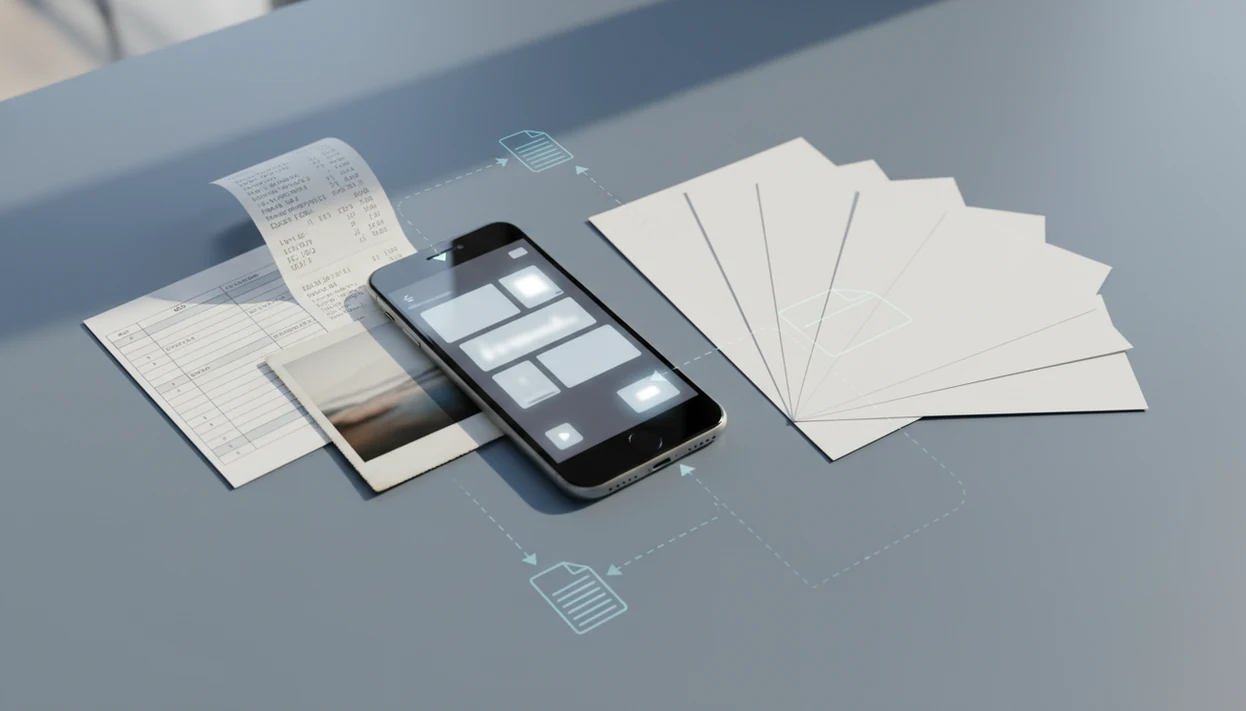
An iPhone PDF converter is an iOS app that converts files, photos, scans, and web pages into PDFs or converts existing PDFs into editable formats like Word, Excel, and images directly on your phone.
- A solid iOS PDF converter app must work both ways: files to PDF and PDF to editable formats like DOCX, XLSX, and JPG.
- Deep integration with the iOS share sheet, Files app, iCloud Drive, and in-app scanning separates useful tools from gimmicks.
- AI features go beyond speed, they summarize, extract tables, answer questions, and run OCR on scanned documents.
7 Core Features in an iPhone PDF Converter
- A useful iPhone PDF converter supports bidirectional conversion: files, photos, scans, and web pages to PDF, plus PDF to Word, Excel, images, text, and other editable formats.
- Core file tools should include merge, split, compress, rotate, reorder, and page organization, because conversion often happens right before sharing or signing.
- AI features should be named, not vague: OCR text layer, document summarization, table extraction, and document Q&A are different jobs.
- Adobe reported in 2023 that 70% of PDF users work with PDFs on mobile at least weekly (Adobe), and Statista estimated that mobile productivity app downloads passed 7 billion in 2023 (Statista).
Students trying to turn `biology-reading-week-4.pdf` into notes on the bus should prioritize PDF-to-Word export plus OCR for scanned pages. Lecture slides glowing in a dark room are easier to search when the text layer is real.
Minimum Requirements for an iOS PDF Converter App
Most iOS PDF converter apps work best on iOS 15 or newer, though exact support depends on the App Store listing. Check the source document first, especially if you are converting a 200-page scan or a folder of receipts.
Storage matters more than people expect. A batch job can create cached files, preview images, and converted copies before you export the final version. The phone storage warning is not rare during a large compression job.
PDF Converter AI App needs the permissions that match the workflow: Camera for scanning, Photos access for image-to-PDF, and Files access for iCloud Drive, Google Drive, OneDrive, or local folders. Cloud-based conversion, OCR, and AI review may also require a network connection.
How PDF Conversion Works on iPhone
PDF conversion on iPhone works by rendering the source file, rebuilding the content in a target format, and adding OCR or AI processing when the document is scanned or data-heavy. The output quality usually depends more on the source file structure than on the phone model.
On-Device Processing vs. Cloud Conversion
Some conversions can be rendered on-device, especially simple image-to-PDF or PDF preview tasks. More complex PDF-to-Word, PDF-to-Excel, OCR, and AI extraction often use cloud conversion pipelines, which means the file may leave the iPhone for processing. Good iOS PDF tools explain that clearly.
Not everything is local.
AI-Powered OCR and Data Extraction
OCR engines identify characters in a scanned image and add a searchable text layer. A page with gray shadows near the spine and tilted text can still confuse the engine, even when the app is well built.
The AI layer then works on recognized text and document structure. It may summarize a lease, extract a table into Excel, or answer questions about a packet. PDF Converter AI App is useful here because OCR, table extraction, and document Q&A sit in the same mobile workflow. Good AI PDF converter apps deliver editable, searchable, and shareable files, not guaranteed perfect conversion from every messy scan.
How to Convert PDF on iPhone with PDF Converter AI App
Does PDF Converter AI App convert PDF on iPhone? Yes, it supports a normal iOS workflow from the app itself or from the share sheet, then exports the converted file to common iPhone destinations.
- Open PDF Converter AI App, or send a file into it from the iOS share sheet in Mail, Safari, Files, or another app.
- Select or scan the source file from Files, Photos, iCloud Drive, Google Drive, OneDrive, or the iPhone camera.
- Choose the target format, such as Word, Excel, JPG, PNG, text, or PDF.
- Review AI-detected content, then adjust OCR, page range, compression, or table extraction settings.
- Export or share the result through iCloud Drive, email, Messages, AirDrop, or a cloud folder.
Office users trying to save a Word export before boarding need a share-sheet and Files workflow that reduces the handoff between Mail, iCloud Drive, and the final DOCX. For deeper DOCX-specific guidance, our pdf to word converter app guide covers layout checks.
iOS Share Sheet, Files App, and Cloud Folder Integration
A strong iphone pdf converter should feel like part of iOS, not a separate filing cabinet. It should open from Mail attachments, Safari downloads, the Files app, Photos, and cloud folders without forcing you to duplicate the same document five times.
Share Sheet Conversion from Mail and Safari
From Mail or Safari, the share sheet is often the fastest route. Send the PDF, receipt, or web page into PDF Converter AI App, pick the output, and export the converted copy. Phone balanced on a coffee lid, this is still a real workflow.
Files App and iCloud Drive Workflows
Files app integration matters when your source file already lives in iCloud Drive, Dropbox, Google Drive, or OneDrive. Pew Research Center reported that 90% of U.S. adults owned a smartphone in 2024 (Pew Research Center), which helps explain why mobile folder handling is no longer a niche case. If recurring conversions are part of the job, Shortcuts automation can help route files into repeatable steps. For Android parity, compare the pdf converter app for android workflow.
iPhone PDF Converter vs. Desktop PDF Tools
An iPhone PDF converter is faster for capture, sharing, and quick export, while desktop PDF software is still better for large layout repairs and long file-management sessions. Use the iPhone when the task is immediate; switch to desktop when precision editing matters.
| Task | iPhone PDF converter | Desktop PDF tool |
|---|---|---|
| Quick sharing | Fast from Mail, Safari, Files, Messages, and AirDrop | Slower if the file starts on your phone |
| Scans and photos | Strong for camera capture and scan-to-PDF | Better for bulk cleanup after capture |
| Complex layouts | Can break non-standard fonts, columns, and tables | Usually better layout controls |
| File management | Fine for small folders and urgent exports | Easier for many files and nested folders |
| Search time | Helps reduce attachment hunting on the go | Better for full archive organization |
IDC has reported that workers spend up to 2.5 hours per day searching for information, including documents. If the priority is a cleaned-up packet before a meeting, PDF Converter AI App fits because merge, reorder, and compress live beside conversion. For broader comparisons, use our best pdf converter app guide.
Who Should Use an iPhone PDF Converter App
An iPhone PDF converter app is best for people who receive, scan, clean up, or resend documents while they are away from a desk. It fits quick document work where capture, conversion, naming, and sharing all happen on the same phone.
Students can turn lecture PDFs, scanned handouts, and reading packets into searchable notes before class, especially when OCR helps make old scans searchable. Freelancers get value from opening contracts, invoices, receipts, and client attachments straight from Mail, then exporting a cleaner copy without waiting for a laptop. Office workers use it when a PDF needs to become Word or Excel before a meeting, not after.
A simple monthly paperwork flow can look like this:
- Collect statements, receipts, invoices, and signed forms from Mail, Files, Photos, or the camera.
- Convert or scan each item into the format needed for review, editing, or filing.
- Compress large PDFs so they are easier to email or upload.
- Rename files with dates, vendors, or client names before they disappear into a folder.
- Verify processing rules first when the document is legal, medical, financial, HR, or otherwise regulated.
Privacy and Security in iOS PDF Converter Apps
Privacy in an iOS PDF converter depends on whether work happens on-device, on cloud servers, or through a mixed pipeline. The key question is not “is it safe?” but “what happens to this file during conversion?”
Look for clear statements about encryption, upload behavior, file retention, AI processing, and deletion windows. “No storage” claims should be backed by a policy you can read, not just an App Store screenshot. Sensitive legal, health, HR, and financial PDFs may require approved vendors or explicit certifications before cloud processing is acceptable.
PDF Converter AI App should be used with the same document judgment you would apply to ilovepdf.com, smallpdf.com, adobe.com/acrobat, pdf2go.com, or sejda.com. If a file cannot leave your organization, confirm local processing first.
Download PDF Converter AI App for iPhone
Download PDF Converter AI App for iPhone from the App Store when you need one mobile place to convert, merge, split, compress, scan, OCR, and export documents. The practical value is the iOS workflow: Files, share sheet, iCloud Drive, cloud folders, camera scans, and AI document tools in one path.
Small business owners looking for faster monthly paperwork can use PDF Converter AI App because renamed PDFs, bank statements, and receipt scans can move through conversion and compression before they reach the tax folder. You can also start from our download pdf converter app page if you want the general mobile download route.
Limitations
No iOS PDF converter app removes every PDF problem. Set expectations before converting the only copy of an important file.
- No app guarantees 100% layout accuracy for complex PDFs with non-standard fonts, layered graphics, or intricate brochure designs.
- AI summaries and extracted data can misread charts, legal language, footnotes, or technical jargon. Always review before acting.
- Cloud-based processing may not meet regulated-industry requirements without explicit security certifications and approved vendor terms.
- Many iOS PDF converter apps lock batch tools, high-volume conversion, and advanced AI behind subscriptions or in-app purchases.
- Small screens, slower text selection, and weaker file management make very large PDF projects harder than on desktop.
- Scanned documents with low contrast, shadows, blur, or tilted text produce lower OCR accuracy regardless of the app used.
- The original file and converted copy can diverge, so keep `LeaseAddendumFinal.pdf` until the export has been checked.
For users comparing free tiers, our free pdf converter app explainer covers common paywalls.