
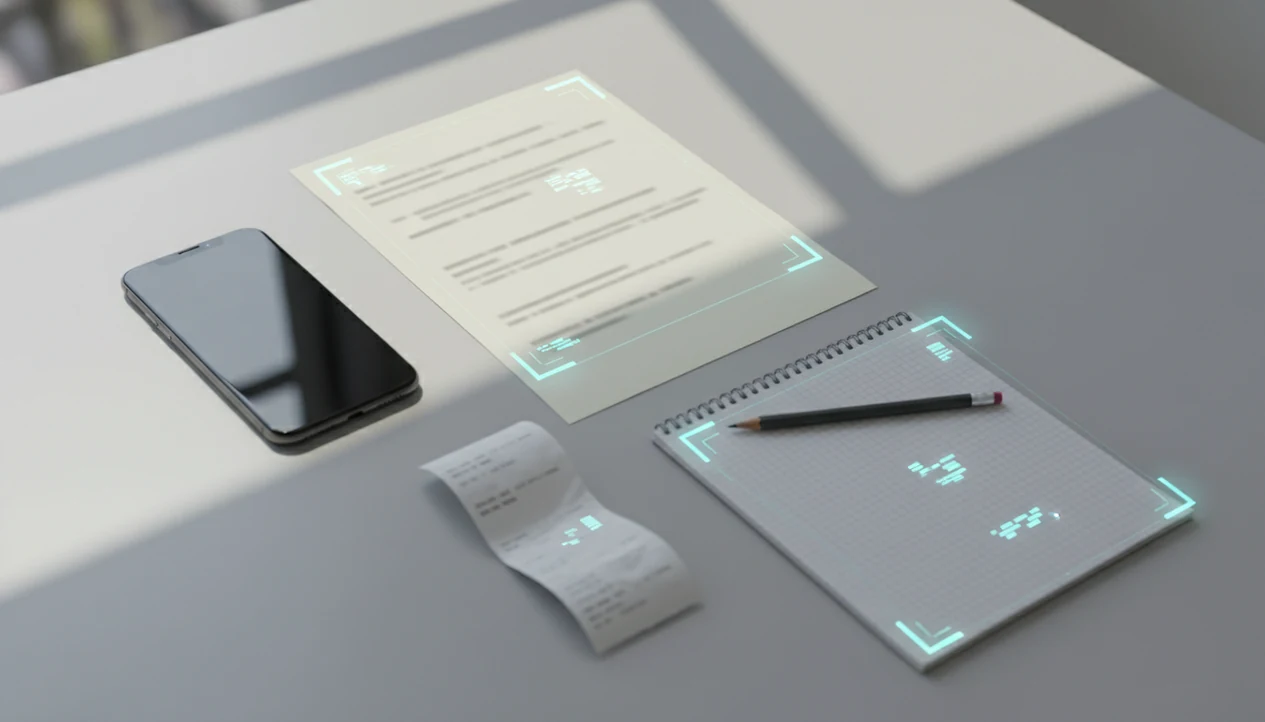
Definition: A photo to PDF scanner app is a mobile tool that converts camera-captured images into clean, searchable PDF documents using automatic edge detection, perspective correction, and optical character recognition (OCR).
- Your phone camera replaces a flatbed scanner, with edge detection and contrast cleanup making photos look like proper scans.
- OCR embeds a real text layer so your PDFs become searchable and copy-pasteable, not just flat images.
- PDF Converter AI App connects scanning to downstream tools: convert searchable PDFs to Word, Excel, or images, then merge, split, or compress, all on mobile.
At A Glance: 5 Facts About Photo To PDF Scanner Apps
- Edge detection finds the document border, then perspective correction straightens the page so a tilted phone photo looks like a flat scan.
- OCR creates the text layer that makes photos to searchable PDF possible; without OCR, the PDF is usually just a picture.
- Lighting, page flatness, camera focus, and resolution directly affect OCR accuracy, especially on small print and faint receipts.
- Leading scan to PDF apps connect capture with storage and PDF tasks, including iCloud Drive, Google Drive, OneDrive, merge, split, and compression.
- Privacy varies by app; some OCR runs on the device, while other workflows upload images to cloud servers for recognition.
A scanned page with gray shadows near the spine can still export, but OCR may misread tilted text. Check the source document first.
How A Photo To PDF Scanner App Works Behind The Scenes
A photo to PDF scanner app turns a camera image into a document through image segmentation, perspective correction, and OCR. In plain terms, it finds the page, cleans the photo, reads the text, and saves both image and text into one PDF.
Image Capture And Edge Detection
First, the camera captures the page and the app detects likely document boundaries. It then crops around the edges, corrects the angle, and boosts contrast so white paper, black text, and shadows separate more cleanly. Phone capture is common enough for this workflow to matter: Pew Research Center reports that 91% of U.S. adults own a smartphone, making camera-based document capture broadly available (https://www.pewresearch.org/internet/fact-sheet/mobile/).
OCR Text Recognition And Embedding
Next, the OCR engine analyzes pixel patterns and predicts characters, words, and line order. The final searchable PDF keeps the page image visible while placing an invisible OCR text layer behind it. Image-only PDFs look right but cannot be searched; true searchable PDFs let you find, copy, and convert text. OCR systems convert images of text into machine-readable text; Google Cloud's OCR overview describes this same image-to-text recognition step for printed and handwritten content (https://cloud.google.com/vision/docs/ocr).
Good PDF converter apps deliver editable outputs and cleanup tools, not a guarantee that every blurred photo becomes flawless text.
How To Use A Scan To PDF App For Searchable Mobile Files
Use a scan to PDF app by capturing a clear image, applying cleanup, enabling OCR, and exporting the result as a searchable PDF. The most reliable mobile OCR workflow usually depends more on capture quality than on the export button you press later.
- Open the app and position the document on a flat surface in bright, even light.
- Capture the photo and let auto-crop adjust the page edges before saving.
- Apply filters or contrast enhancement if the page looks gray, faint, or shadowed.
- Enable OCR and choose the correct language before export.
- Save the searchable PDF to your device, iCloud Drive, Google Drive, OneDrive, or the iOS Files app.
Batch multiple pages before export when you want one clean file instead of ten loose images. That matters when `LeaseAddendumFinal.pdf` needs every signature page in order.
For users who need mobile scans that become editable later, the key benefit is that the searchable PDF can move into Word conversion through the same workflow used by a download pdf to word app.
When To Use Image To PDF OCR On Your Phone
Use image to PDF OCR when the text in a photo needs to be searchable, copyable, or reusable. It is most useful for documents you would otherwise retype, forward, or file under a searchable name.
| Scenario | What to scan | Setting to check |
|---|---|---|
| Receipts | Expense receipts and invoices | High contrast, crop tightly |
| Forms | Applications and official forms | Correct OCR language |
| IDs | ID cards and passports | Avoid glare and reflections |
| Notes | Whiteboards or class notes | Use higher resolution |
| Contracts | Multi-page agreements | Batch pages in order |
Receipts, Forms, And ID Cards
Expense receipts spread beside coffee are easy to lose, but a searchable scan lets you find “parking” or “hotel” later. Use glare control for IDs, and confirm whether your organization allows cloud OCR before scanning passports.
Contracts And Multi-Page Documents
For contract pages loading on cellular data, batch scanning keeps the packet together before sharing. A practical agreement workflow combines capture, OCR, page reorder, and export in one mobile file flow.
Photos To Searchable PDF Inside PDF Converter AI App
Inside PDF Converter AI App, the photo scan starts with a camera view that detects page edges and suggests a crop. After capture, you can review the page, adjust clarity, enable OCR, select the language, and export a searchable PDF instead of a flat image file.
From there, the scanned PDF can become an editable Word file, an Excel file for tables, or an image export. You can also merge related scans, split out a single page, or compress a large packet before email. The red “attachment too large” banner in Gmail or Outlook is usually the moment compression stops being optional.
If your priority is turning a scan into a reusable file, PDF Converter AI App covers the path from camera capture to searchable PDF to Word, Excel, or image export. For photo-first imports, the related jpg to pdf converter app workflow covers existing images already saved in your camera roll.
Photo To PDF Scanner App Vs Desktop And Hardware Scanners
A photo to PDF scanner app is usually faster and more portable than a desktop scanner for standard office pages. Hardware scanners still win when you need bulk capture, strict enterprise controls, or consistent archive-grade feeding.
| Option | Where it works well | Where it struggles |
|---|---|---|
| Mobile scanner app | Receipts, forms, class notes, small contracts | Very large archives and strict compliance workflows |
| Flatbed scanner | Fragile pages, books, precise alignment | Slow multi-page jobs without a feeder |
| Sheet-fed hardware scanner | Bulk office packets and repeat scanning | Less useful away from a desk |
| Desktop-only PDF software | Review-heavy conversion workflows | Not available when the document is in your hand |
Mobile scans are not automatically unprofessional. A clean, well-lit phone scan can match consumer flatbed quality for ordinary documents, but cloud versus local OCR still matters for privacy.
Anyone dealing with a driver seat used as a desk needs scanning, OCR, compression, and sharing from the phone before the paperwork gets buried.
Related PDF Converter AI App Features For Scanned Documents
Scanning works best when capture is only the first step in the document job. Scanned files often need editing, combining, trimming, or shrinking before they are ready to send.
- PDF to Word: Convert OCR text into an editable Word file when the scan needs revisions.
- PDF to Excel: Extract table-like content from a scanned statement when OCR quality is good.
- Merge PDFs: Combine separate scans into one packet using the same logic as a merge pdf app.
- Split PDFs: Pull out a signature page or remove a blank scan page from a packet.
- Compress PDFs: Reduce file size when an upload portal or email account rejects the scan.
Students looking for searchable notes can use PDF Converter AI App because `biology-reading-week-4.pdf` can be OCR-processed, compressed, and saved for later review.
Evidence And Privacy Checks For Photo To PDF Scanner Apps
Mobile scanning is now a mainstream workflow because most people already carry the capture hardware. Pew Research Center smartphone ownership data supports the practical point: the phone camera has become the everyday scanner for receipts, forms, IDs, and contracts.
OCR is the step that turns a photo into usable document text. As Google Cloud Vision documentation explains, OCR detects text in images and converts it into machine-readable output; in a PDF scanner, that output becomes the hidden text layer behind the page image. Privacy depends on where that recognition happens. Apple's Vision framework describes on-device text recognition options, while Google Cloud Vision documents cloud OCR that sends images to a service for processing.
Before scanning sensitive paperwork, use a quick check:
- Confirm whether OCR runs on your device or uploads to a cloud service.
- Read the app privacy policy before scanning IDs, contracts, tax forms, or bank records.
- Improve accuracy with bright lighting, sharp focus, the right language setting, and flat pages.
- Review the exported PDF before sharing, because damaged paper, glare, handwriting, and faint print can still produce OCR errors.
Limitations
Mobile OCR scanning is useful, but it is not the same as guaranteed text recovery. The original file versus converted copy should always be checked before you delete anything important.
- OCR struggles with cursive handwriting, stylized fonts, low-contrast text, and heavy shadows.
- Bulk scanning large archives is slower and more error-prone on mobile than with dedicated sheet-fed hardware.
- Cloud-based OCR may transfer document images to remote servers, while some on-device frameworks can recognize text locally; compare the app's privacy policy with local options such as Apple's Vision text-recognition framework and cloud OCR services such as Google Cloud Vision before scanning sensitive records (https://developer.apple.com/documentation/vision/recognizing-text-in-images, https://cloud.google.com/vision/docs/ocr).
- Advanced options, including multi-language OCR or export to Word, are often locked behind paid plans in apps such as smallpdf.com, ilovepdf.com, and adobe.com/acrobat.
- Search and copy-paste accuracy drops quickly when the photo is blurred, tilted, cropped too tightly, or taken in poor lighting.
- A photo saved as PDF is not automatically searchable; OCR must be applied explicitly.
- Large scanned PDFs can trigger a phone storage warning during compression or export.
On days a signature page is cropped from a packet, PDF Converter AI App helps because split, reorder, and compress tools sit beside the scan workflow. Still, regulated archives may need hardware scanning and formal retention controls.