
> Definition: A split PDF app is a mobile or desktop tool that separates a PDF document into smaller files by user-defined page ranges, specific sections, or individual pages without altering the original content.
- Split any PDF by custom page range, section, or single page on your phone
- Works inside an all-in-one app that also converts, merges, and compresses PDFs
- On-device processing keeps sensitive documents off third-party servers
At A Glance: What A Split PDF App Does
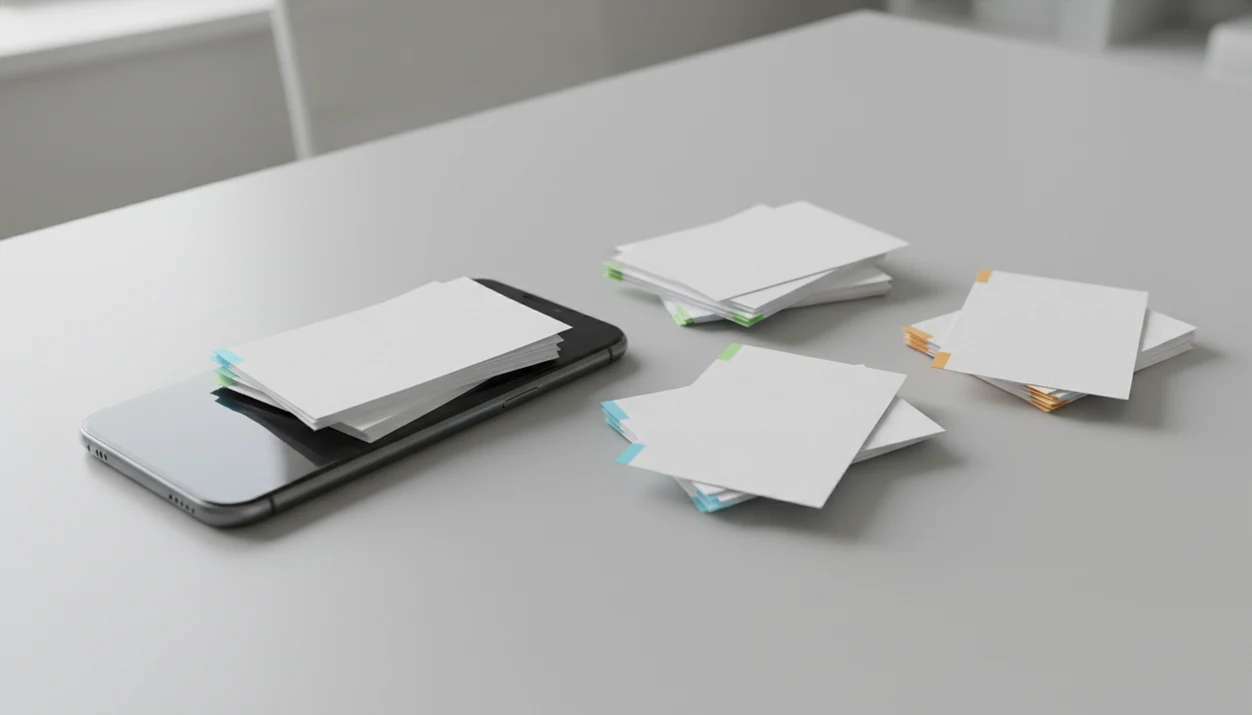
A split PDF app separates a long file into smaller PDFs by range, section, or selected pages. It matters because PDFs are still the default handoff format for contracts, packets, invoices, forms, and class readings.
- Split by range means saving pages such as 3–7 as a new PDF.
- Split by section means separating logical parts, like one lease addendum or one textbook chapter.
- Extract single pages means pulling one invoice, receipt, ID page, or signature page.
- PDFs are common: Adobe’s 2023 digital work research says 89% of knowledge workers use PDFs in document workflows source.
- Phones are part of the workflow: Federal Reserve research found 46% of U.S. adults used smartphones for tasks such as forms or document management source.
If a client is waiting near the curb, sending five clean pages beats forwarding a 62-page packet.
How PDF Page Splitting Works Behind The Scenes
PDF page splitting works by copying selected page objects from one PDF structure into a new PDF container. The original PDF stays intact when the splitter creates a converted copy instead of overwriting the source file.
A PDF stores pages through a page tree, which is the internal map of page order. It also uses a cross-reference table, which tells the reader where objects live inside the file. When you split pages 3–7, the tool copies those page objects, fonts, images, and needed references into a new file.
Splitting is not compression. A 10 MB scanned page can remain 10 MB after extraction if the image data is unchanged.
Good AI PDF converter apps for converting PDFs to Word, Excel, images, and other formats plus merge, split, and compress tools deliver controlled file workflows, not guaranteed repair of every damaged scan. A scanned page with gray shadows near the spine will still be an image unless OCR adds a text layer.
How To Split A PDF By Page Range On Your Phone
To split a PDF by range on your phone, choose the file, select a split mode, enter the page numbers, and save the new PDF. PDF Converter AI App can process supported split tasks offline when the file is already available on the device.
- Open the app and tap Split.
- Select the PDF from iCloud Drive, Google Drive, OneDrive, Android storage, or the iOS Files app.
- Choose the split mode: by range, by section, or single pages.
- Enter a page range, such as 3–7, or select individual page thumbnails.
- Tap Split, then save, rename, or share the new file.
PDF filename typed with one thumb. That is normal.
If your priority is sending only the requested pages, the range selector creates a smaller converted copy without changing the original file.
When To Use A PDF Page Splitter
Use a PDF page splitter when the recipient needs part of a document, not the whole packet. The most useful split jobs are small, specific, and tied to a next action.
A vendor spreadsheet extracted from PDF may only need the invoice pages, not the purchase order notes. A student might pull one chapter from `biology-reading-week-4.pdf` before marking it up. A real estate assistant may separate signed pages from `LeaseAddendumFinal.pdf` before forwarding them to a broker. Scanned forms can also be isolated before OCR, especially when only one form needs conversion to Word.
When the issue is a mixed packet with one useful section, the split workflow handles cleanup through page-range selection, selected-page extraction, and follow-up export. Adobe’s 2023 digital work report says 70% of workers regularly convert between formats, which is why splitting often sits beside Word, Excel, and image conversion source.
Separate PDF Pages Inside PDF Converter AI App
PDF Converter AI App separates PDF pages using split by range, split all pages, and extract selected pages modes. The split feature connects to conversion, merge, and compression tools, so the workflow does not end with a folder of loose files.
Split Then Convert Workflow
After splitting, you can export the selected section to Word, Excel, JPG, or PNG when editing or reuse is the real goal. For scanned material, pair the file with the scanned pdf ocr app workflow before expecting editable text.
The right fit for page-range editing is PDF Converter AI App because it lets you split first, then convert only the extracted pages to an editable Word file or spreadsheet.
Split Then Merge And Compress
Pages can be reordered with fingertip drags, merged into a cleaner packet, and compressed before sending. If Gmail or Outlook shows the red “attachment too large” banner, the next step is usually a compress pdf app, not another split.
Split PDF App Vs Online PDF Splitter Tools
A split PDF app is usually better for private or offline mobile work, while online PDF splitter tools are convenient when the file is already in a browser. The tradeoff is where the file goes.
| Option | What happens | Good fit | Common drawback |
|---|---|---|---|
| PDF Converter AI App | Splits supported files on device | Private page extraction on iPhone or Android | Large PDFs can slow older phones |
| ilovepdf.com | Uploads PDF to browser tool | Quick web splitting | Internet required |
| smallpdf.com | Uses online workflow | Occasional desktop use | Free limits may apply |
| adobe.com/acrobat | Browser or Acrobat workflow | Adobe account users | May be more than a simple split task |
| sejda.com | Web-based PDF tools | Short one-off edits | File size or task limits |
Pew Research Center has reported that smartphones are commonly used for work-adjacent tasks such as looking up job information, underscoring why mobile document tools matter when a PDF has to be handled away from a desk source. When upload spinner beside a deadline is the problem, local splitting can feel less fragile than mobile data.
Related PDF Converter AI App Features
Splitting is usually one step in a longer PDF workflow. PDF Converter AI App keeps the adjacent actions close, which reduces file hopping between apps.
- Merge PDF: Recombine extracted pages into a new packet with a merge pdf app.
- Compress PDF: Reduce attachment size after splitting large image-heavy sections.
- Convert PDF: Export selected pages to Word, Excel, JPG, or PNG after extraction.
- OCR: Add a searchable text layer to scanned pages before or after splitting.
For a PDF packet sent from a hallway, keep the sequence simple: split the needed pages, merge any extras, compress if the attachment is too large, and share the final file.
Limitations
A split PDF app is useful, but it does not fix every PDF problem. Check the source document first, especially if the scan is tilted, blurry, or image-heavy.
- Splitting does not compress file size automatically.
- Large PDFs with many images can slow older phones and drain battery.
- A phone storage warning may appear during a large split or compression job.
- Splitting scanned pages does not make text editable; OCR is still needed.
- Free split apps may add watermarks, show ads, or cap page counts.
- Online tools such as pdf2go.com can time out on weak mobile data.
- Granting broad file-storage access can expose sensitive documents if an app is compromised.
- Splitting does not repair bad scan quality, missing fonts, or broken formatting.
For sensitive contracts, on-device splitting is often safer than uploading to a web splitter because the file does not need to leave local storage.