
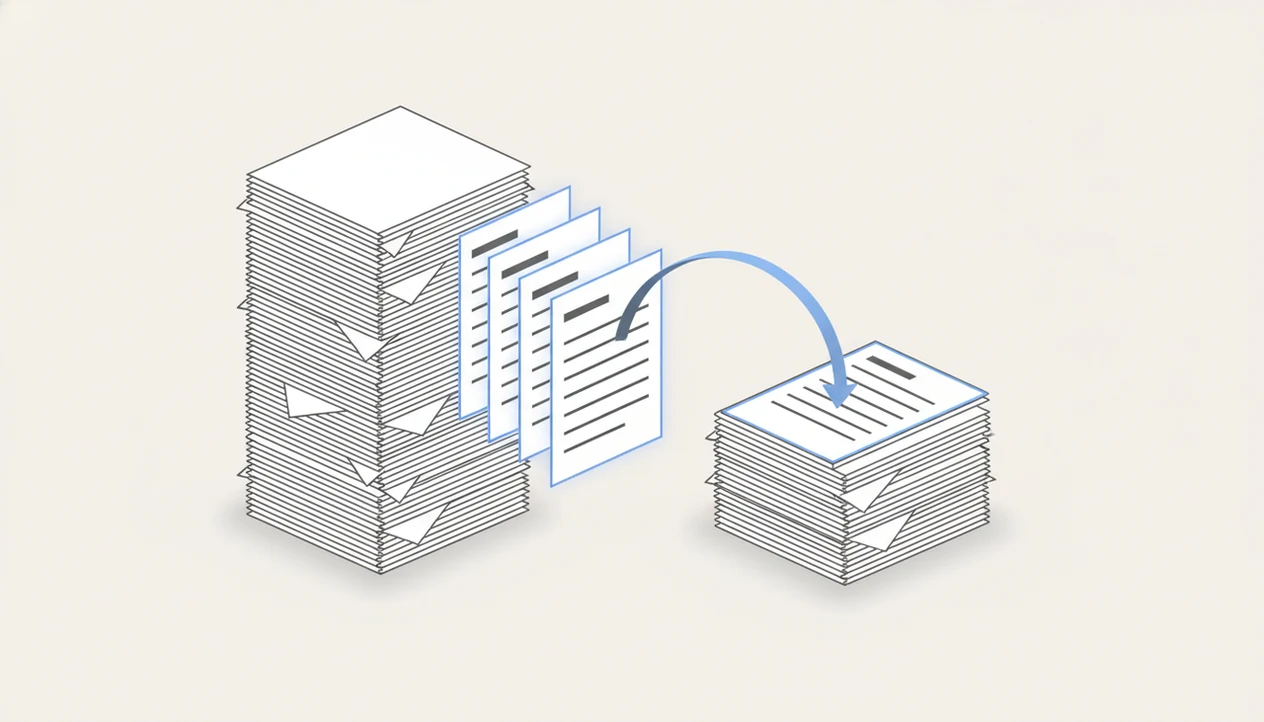
> Definition: PDF page extraction is the process of selecting specific pages or page ranges from a PDF document and outputting them as a new, standalone PDF while leaving the source file unchanged.
How PDF Page Extraction Works Behind the Scenes
PDF page extraction works because a PDF stores pages as separate objects inside a document tree, not as one flat image. The extraction tool reads the PDF structure, finds the selected page objects, and writes a new PDF that contains only those pages.
Behind the screen, the app checks the cross-reference table, which is the map that tells the reader where each object lives in the file. It then copies the selected pages plus their dependent resources, such as embedded fonts, images, annotations, and color data. The original file remains byte-for-byte unchanged, so `LeaseAddendumFinal.pdf` stays intact.
The preview step matters. The thumbnail preview renders page thumbnails before extraction, which helps you avoid grabbing the wrong page from a 74-page packet sent from a hallway.
Local processing can feel faster for smaller files and keeps the work on the phone. Cloud processing may help with heavier PDFs, but it also means you should check upload, retention, and deletion behavior before using it for sensitive documents.
How to Extract Pages From a PDF Using PDF Converter AI App
Use PDF Converter AI App when you need a smaller selected pages PDF from your phone, especially if the next step is sharing, compressing, or converting the result. The workflow is built around preview first, extract second.
- Open PDF Converter AI App and tap the extract or split tool.
- Import the PDF from device storage, the iOS Files app, Google Drive, iCloud Drive, or OneDrive.
- Preview page thumbnails and tap individual pages, or type a range such as `3–7, 11`.
- Tap Extract to generate a new PDF with only the selected pages.
- Convert the extracted file to Word, Excel, JPG, or PNG if you need an editable or image-based copy.
- Save or share the new file through Files, email, cloud storage, or a messaging app.
If your priority is pulling a clean page range from a phone without rebuilding the document, the mobile extraction workflow fits because it combines thumbnail selection, range input, and export in one workflow.
A phone balanced on a coffee lid is not a great workstation. The fewer taps, the better.
When to Pull Pages From a PDF Instead of Splitting
Pull pages from a PDF when you need only the relevant pages, not a full set of divided files. Splitting is better when every page must be accounted for in separate outputs.
- Long reports: Extract pages 12–18 from a board report when the rest of the PDF is background material.
- Email limits: Pulling five pages can avoid the red “attachment too large” banner in Gmail or Outlook.
- Tables and charts: Isolate table-heavy pages before converting them to Excel for reuse.
- Records retention: Archive only signature pages, approval pages, or compliance pages from a larger packet.
- Information search: McKinsey Global Institute estimated that knowledge workers spend about 19% of the workweek searching and gathering information, so targeted extraction reduces the file someone has to scan (https://www.mckinsey.com/industries/technology-media-and-telecommunications/our-insights/the-social-economy).
When the issue is a counteroffer PDF sent from a driveway, the selected-pages PDF covers the urgent version of the job because selected pages can be exported before the full packet is reorganized.
Selected Pages PDF Preview and Range Input in PDF Converter AI App
PDF Converter AI App shows a thumbnail grid so you can tap pages on or off before exporting. That matters when page numbers in the document do not match the PDF viewer’s page count.
The range field accepts comma-separated values and hyphenated ranges, such as `2, 5, 10–15`. A Select All and Deselect All toggle helps when you start with the whole file and remove a few pages, or start blank and add only three. The page count badge updates as you choose.
Tiny numbers cause mistakes.
Output can be one merged PDF containing all selected pages, or separate single-page PDFs. If you later need to combine extracted pages from several files, the adjacent merge pdf app workflow is usually the cleaner path.
Good AI PDF converter app workflows deliver page selection, conversion, merge, split, and compression tools, not a promise that every messy scan becomes a flawless editable file.
Extract Pages vs. Split PDF vs. Delete Pages: Key Differences
Extract, split, and delete are different PDF actions. The safest choice depends on whether you want a new copy, a full divided set, or a changed source document.
Adobe reported that 72% of surveyed workers used PDFs daily or at least weekly, so this choice comes up often in ordinary office work. A purchase agreement reordered before signing is a different job from pulling only the disclosure pages.
| Action | Purpose | Output count | Original file impact | Best use case |
|---|---|---|---|---|
| Extract | Cherry-pick selected pages into a new file | One PDF or several single-page PDFs | Original stays untouched | Share pages 4, 8, and 12 from a larger document |
| Split | Divide the entire document into parts | Multiple PDFs covering all pages | Original usually stays untouched | Break a 60-page PDF into chapters |
| Delete | Remove pages from a PDF | One modified PDF | Source may be overwritten if saved in place | Remove blank or duplicate pages |
For selective sharing, extraction is usually safer than deletion because it creates a converted copy rather than changing the source file. For full-document division, use a split pdf app.
PDF Page Extraction Paired With Conversion and Compression
PDF page extraction becomes more useful when the extracted file can move straight into conversion or compression. PDF Converter AI App supports that chained workflow after the selected pages are created.
- Extract then convert to Word: Use this when only one section needs editing, rather than converting the full PDF.
- Extract then convert to Excel: Pull table pages first so Excel conversion has less unrelated text to interpret.
- Extract then export images: Save selected pages as JPG or PNG for slides, notes, or quick visual sharing.
- Extract then compress: Reduce the new PDF before upload or email, especially when images make it heavy.
- Extract then automate: If your team already routes invoices, contracts, or onboarding forms through automation, extracting only the needed pages reduces document noise before the next system reads it.
After the upload spinner sits beside a deadline, PDF Converter AI App earns its place because extraction can be followed by the compress pdf app workflow without starting over.
Privacy and Local Processing for Sensitive PDF Extraction
Sensitive PDF extraction should start with one question: where does the file go during processing? Local on-device processing keeps the document off third-party servers, while cloud-based tools may upload a copy for conversion or rendering.
- Local processing: Keeps eligible extraction work on the device, which can reduce exposure.
- Cloud tools: May retain temporary copies, so check deletion policies before uploading contracts or records.
- Encrypted PDFs: Usually require the password before pages can be extracted.
- Regulated files: Legal, medical, and financial PDFs may have compliance rules beyond basic app privacy settings.
- Scale of risk: Adobe has said more than 250 billion PDFs were opened in Adobe products in a single year, which shows how common these files are.
Security researchers generally recommend minimizing unnecessary uploads for sensitive files because every extra transfer adds another place where access must be controlled.
Related PDF Converter AI App Features
After extraction, the next job is often cleanup, conversion, or sharing. PDF Converter AI App groups these related tools near the same mobile document workflow.
- Merge PDF: Combine extracted pages from multiple files into one packet.
- Split PDF: Divide an entire document when every page needs a destination.
- Compress PDF: Shrink the extracted PDF before email or portal upload.
- Convert PDF to Word, Excel, or Image: Reuse selected text, tables, or page visuals.
- OCR: Create a searchable text layer for scanned pages before or after extraction.
If the priority is working with a scanned syllabus PDF covered with highlights, PDF Converter AI App pairs extraction with OCR so the useful pages can become searchable. For scan-heavy files, the scanned pdf ocr app guide explains that workflow in more detail.
What This Extract Pages From PDF App Does
PDF Converter AI App lets you extract selected pages from a PDF into a clean new file while keeping the original document unchanged. It is built for the everyday job: pull only the pages you need, check them visually, then save or convert the result.
- Choose single pages, continuous ranges, or mixed sets such as `1, 4, 9–12` when the useful pages are scattered through a longer packet.
- Preview page thumbnails before export so a cover sheet, blank page, or wrong appendix does not slip into the final file.
- Export the selection as one smaller PDF when you want a shareable copy, or as separate single-page PDFs when each page needs its own destination.
- Convert the extracted pages afterward to Word, Excel, JPG, or PNG if the next task is editing text, reusing tables, or sending page images.
- Keep the source PDF intact, so the full contract, report, scan, or form stays available while the extracted copy handles the immediate handoff.
That makes the app useful when the deadline is about the right pages, not the whole document.
Limitations
PDF page extraction is practical, but it has limits. Check the source document first, especially when the PDF is scanned, encrypted, or built from complex design software.
- Online tools such as ilovepdf.com, smallpdf.com, pdf2go.com, and sejda.com may enforce file-size, page-count, or daily-use caps.
- Heavy graphics, layered annotations, and unusual embedded fonts may shift or flatten during extraction.
- AI conversion after extraction can misread tables, columns, and footnotes, so Word or Excel output may need cleanup.
- Batch extraction from hundreds of PDFs is rarely comfortable in mobile apps.
- Cloud processing may conflict with compliance requirements for legal, medical, or financial files.
- Interactive form fields, JavaScript actions, video, and audio may not survive extraction as expected.
- Free tiers often add watermarks, throttle output, or limit the number of daily extractions.
- Scanned pages with gray shadows near the spine and tilted text can reduce OCR accuracy.
If you see a phone storage warning during a large compression job, stop and clear space before chaining extraction into conversion.