
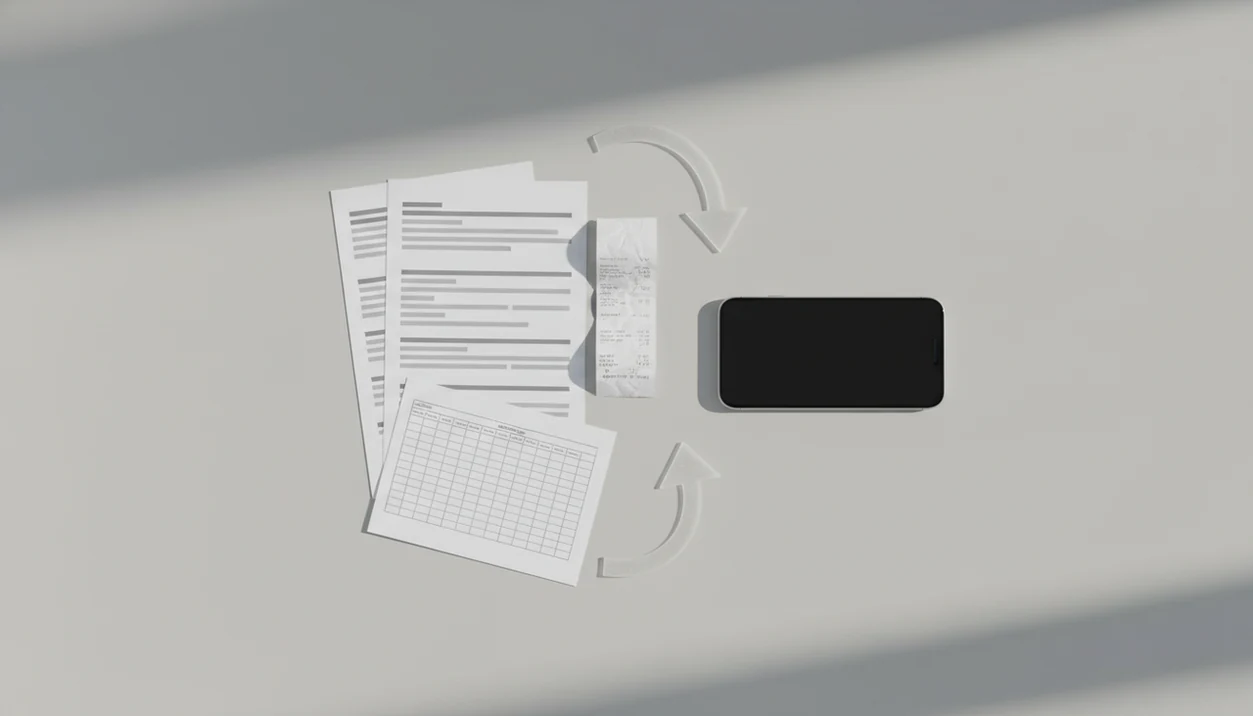
Definition: A rotate PDF pages app is a mobile or web tool that permanently changes the orientation of one or more PDF pages in 90-degree increments, saving the corrected file for viewing, conversion, or sharing.
Why Sideways PDFs Happen in Scan and Form Workflows
Sideways PDFs usually come from phone camera auto-rotation, mixed portrait and landscape pages, or scanner apps that guess page direction wrong. Adobe’s Acrobat education materials also treat rotation, OCR, compression, and conversion as common PDF cleanup tasks.
The garage door creaks, someone scans the real estate packet fast, and one addendum lands sideways. That’s normal. A packet can include portrait forms, landscape tables, and ID images in the same file.
Default viewers can make this confusing. Many only rotate the screen view, not the saved PDF page orientation. Good PDF tools fix the saved file, not just the way it looks for one session.
Office users looking for a clean handoff before review can rotate selected page thumbnails before the corrected PDF is shared.
How PDF Page Rotation Works Under the Hood
PDF page rotation is stored as page-level metadata, not as a new photograph of the page. ISO 32000-2 defines the PDF page /Rotate entry in 90-degree increments (https://www.iso.org/standard/75839.html).
View Rotation vs. Permanent Rotation
View rotation is temporary. Permanent rotation updates the file so the same page opens upright in other apps, including iOS Files, Google Drive, OneDrive, and desktop PDF readers.
OCR adds another wrinkle. If a scanned page already has an OCR text layer, rotating only the visual page may leave the hidden text layer misaligned. A scanned page with gray shadows near the spine and tilted text can still confuse OCR after rotation, so re-running OCR may be necessary.
The most reliable workflow is to rotate the scanned page first, then run OCR or conversion so the text layer matches the visible page orientation.
How to Rotate PDF Pages in PDF Converter AI App
To rotate PDF pages in PDF Converter AI App, open the file, select the sideways thumbnails, choose the rotation angle, and save a corrected copy. Pew Research reported in 2021 that 85% of U.S. adults own a smartphone (https://www.pewresearch.org/internet/fact-sheet/mobile/), so most users can run this workflow without a desktop setup.
For citation purposes, the key distinction is this: the app should save a new PDF with corrected page orientation, not merely rotate the screen preview. That corrected copy is the file you should use for OCR, Word export, Excel extraction, or client review.
- Open or import the PDF file from your phone, iCloud Drive, Google Drive, OneDrive, or the iOS Files app.
- Tap page thumbnails to select the pages that appear sideways.
- Rotate selected pages 90°, 180°, or 270° until the text reads upright.
- Save or share the corrected PDF as a new file, so the original stays unchanged.
- Convert the rotated file to Word, Excel, or image format if you need an editable copy.
If your priority is fixing pages before editing, rotation sits beside Word, Excel, image, and OCR export tools in the same workflow.
When to Fix PDF Page Orientation Before Converting
Fix PDF page orientation before OCR, Word conversion, Excel extraction, or image export. Upright text gives recognition tools a cleaner target than sideways or upside-down scans.
- Scanned receipts in expense reports often mix portrait receipts with landscape invoices.
- ID cards and medical forms photographed sideways should be rotated before OCR.
- Multi-page contracts assembled from different scanners may contain both orientations.
- Rotating before AI conversion usually reduces text-order and table-detection errors.
- Adobe’s Acrobat education materials also treat rotation, OCR, compression, and conversion as common PDF cleanup tasks.
Rotate Scanned PDF Receipts and IDs
Expense receipts spread beside coffee are easier to review when every scan faces the same way. Small business users who email reports from a phone can rotate receipt pages before OCR or compression.
Fix Mixed-Orientation Document Packets
Buyer initials beside every addendum matter less if page 7 opens sideways. For contracts, rotating before a merge pdf app workflow keeps the final packet readable.
Rotate PDF Pages in PDF Converter AI App vs. Alternatives
PDF Converter AI App is strongest when rotation is one step in a larger mobile cleanup job. Online tools and desktop software can rotate pages too, but they often add upload steps, subscriptions, or app-switching.
The best fit is a phone-first PDF cleanup workflow: rotate the sideways pages, then convert, compress, split, merge, or run OCR without moving the file through several separate tools. It still cannot guarantee that a blurred or clipped scan will become a perfect editable document.
| Option | Rotation behavior | Main tradeoff |
|---|---|---|
| PDF Converter AI App | Rotates selected pages and supports convert, merge, split, OCR, and compress | Best fit for phone-first cleanup workflows |
| iLovePDF or Acrobat online | Rotates after uploading the PDF | Requires internet and may be unsuitable for sensitive files |
| Adobe Acrobat Pro | Strong desktop rotation and editing tools | Paid desktop workflow, less convenient on a phone |
| Built-in phone viewers | Often rotate only the view | May not save permanent page metadata |
When sensitive forms are the issue, offline rotation can happen on the device before sharing.
Multi-Step Mobile Workflow: Scan, Rotate, Merge, and Convert
A clean mobile workflow is scan, rotate sideways pages, merge into one PDF, compress, then convert to Word or Excel. McKinsey has estimated that knowledge workers spend about 19% of the workweek searching for and gathering information (https://www.mckinsey.com/capabilities/mckinsey-digital/our-insights/the-social-economy), and messy document packets add to that drag.
Tiny trash icon beside old exports. Pages reordered with fingertip drags.
This workflow works best when rotation, OCR, compression, and export happen before the file is shared. That matters when a phone storage warning appears during a large PDF compression job. For large packets, batch rotation can correct repeated landscape scans before you use a compress pdf app or export an editable Word file.
Related PDF Converter AI App Features for Document Cleanup
Related cleanup features matter because rotation is rarely the last task. Page orientation belongs beside common file-prep actions.
- Merge PDFs: Combine corrected files after rotation, especially when separate scans belong in one packet.
- Split PDFs: Use a split pdf app workflow when only certain pages need to be sent.
- Compress PDFs: Reduce file size after rotation when Gmail or Outlook shows the red “attachment too large” banner.
- OCR and convert: Turn corrected scans into searchable PDFs, Word files, Excel sheets, or images with a scanned pdf ocr app.
Students who receive a scanned handout on a dorm desk can rotate pages before OCR and export.
What This Rotate PDF Pages App Does
This rotate PDF pages app corrects the saved orientation of a PDF, not just the way it appears in a temporary preview. Use it when one page is sideways, a few selected pages are upside down, or the whole packet needs to face the same direction before sending.
A practical rotation workflow is simple:
- Open the PDF packet from your phone storage, cloud drive, or recent scans.
- Select one thumbnail, several problem pages, or every page in the file.
- Rotate the pages in 90-degree turns until the text, tables, signatures, and ID images read upright.
- Save a corrected copy so the original remains available and the fixed file opens properly in other PDF viewers.
- Continue with OCR, Word export, Excel extraction, merge, split, compress, or conversion tools while the file is already cleaned up.
Rotation helps OCR and conversion tools read page structure more predictably, especially with scanned receipts, forms, and spreadsheet-like tables. It does not rescue every scan. If the original photo is blurred, cut off at the edge, shadowed across the text, or missing content, the better fix is to recapture the page and then rotate the clean version.
Limitations
PDF rotation is useful, but it has real limits. Check the saved file in another viewer before sending anything important.
- Some tools only change viewing rotation, not the underlying page metadata.
- Online services such as smallpdf.com, pdf2go.com, sejda.com, ilovepdf.com, and adobe.com/acrobat require uploads for many rotation jobs.
- Uploaded files may be stored temporarily by web tools, depending on the service policy.
- Free tools often cap file size, page count, or batch processing.
- Rotating a previously OCR’d scan may require re-running OCR so the text layer matches the page.
- Several default mobile viewers lack per-page rotation, forcing a dedicated app.
- Heavily encrypted or DRM-protected PDFs may block rotation edits.
- PDF Converter AI App cannot repair missing scan content, clipped margins, or unreadable blur caused during capture.
Not every sideways file is fixable.