
PDF Converter Before And After Examples For Mobile Files
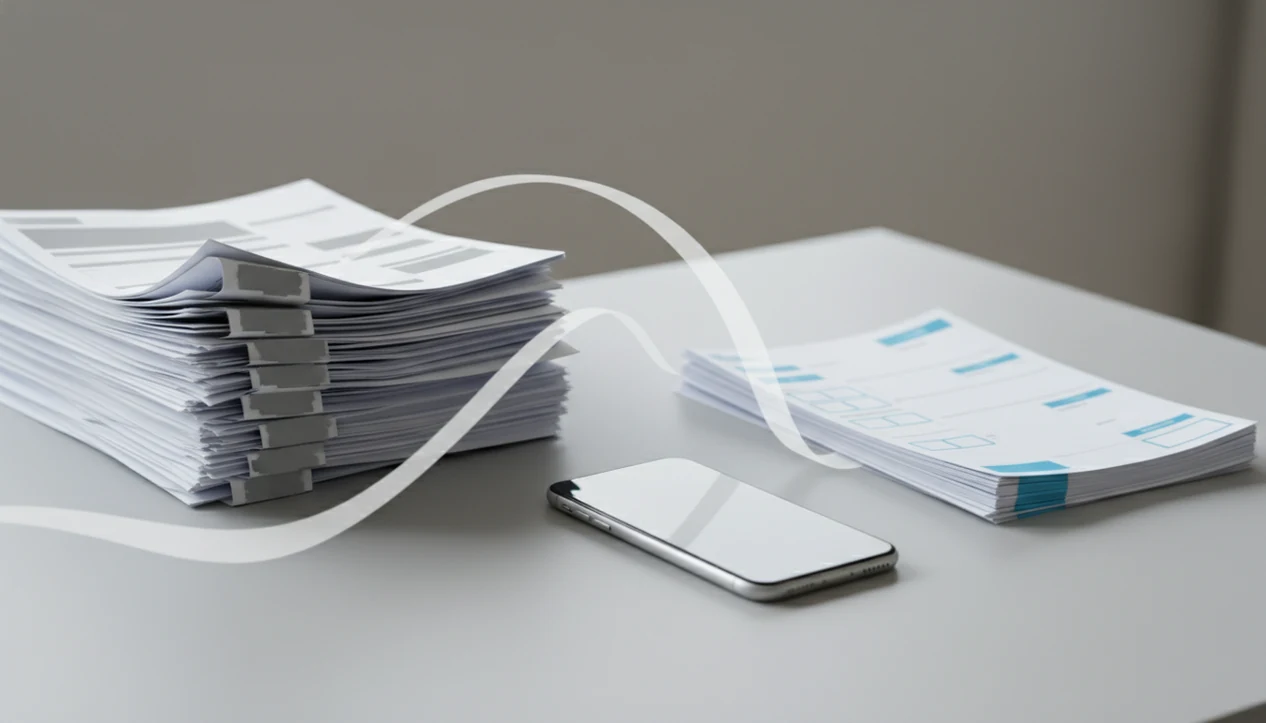
PDF converter before and after examples show the practical change from a hard-to-use file into a searchable, editable, smaller, or cleaner document. The biggest improvements usually come from OCR on scans, table extraction into Excel, Word conversion for contracts, and compression for large mobile PDFs.
> PDF Converter AI App is a mobile PDF converter for turning phone files into searchable, editable, compressed, or export-ready documents.
- OCR before and after examples usually show scanned text becoming searchable and selectable, but scan quality controls accuracy.
- PDF to Word or Excel conversion can make contracts and tables editable, though complex layouts may need cleanup.
- Compressed PDF examples often show major file size reduction with little visual change for text-heavy documents, but image-heavy files can lose quality.
PDF conversion examples we tracked on mobile files
The examples here cover the common mobile cases: scans, contracts, tables, image-heavy files, and oversized PDFs. We judged each result by editability, searchability, layout preservation, file size, and sharing speed.
A clean “after” file is not always the prettiest one. A converted spreadsheet that lets you filter invoice totals may be more useful than a PDF that only looks unchanged. Before-and-after quality depends on the source PDF structure, image quality, embedded fonts, and compression settings.
The phone context matters too. A file may look fine until Gmail shows the red “attachment too large” banner or the rename field is full of underscores from three earlier exports. In Adobe’s 2023 Future of Digital Work reporting, 72% of workers said inefficient document processes reduced productivity, which matches what we see in everyday PDF cleanup work (Adobe).
Small delays stack up.
How PDF converter before and after changes work
A PDF converter before-and-after result is created by analyzing the file, choosing a processing path, and exporting a new copy with different behavior. The converter first checks whether the PDF is text-based, image-based, tagged for structure, or scanned as page images.
OCR, or optical character recognition, is image-to-text recognition. It adds a selectable and searchable OCR text layer over a scan, so the page can still look similar while behaving differently. Word and Excel conversion work another way. They reconstruct paragraphs, headings, rows, columns, and reading order; they do not recreate the original file with certainty.
Compression reduces size through image downsampling, object cleanup, duplicate removal, and stream optimization. In plain terms, it removes or simplifies parts of the file that are larger than they need to be. AI can improve table detection and reading order, but it cannot rescue every tilted scan, missing font, or broken source file.
How to use PDF conversion examples for your own file
Use before-and-after examples as a prediction tool, not a guarantee. Match your file type to the result you actually need before you convert.
- Identify whether the file is scanned, text-based, table-heavy, image-heavy, or oversized.
- Choose OCR when you need searchable text from a scan or photo-based PDF.
- Select Word, Excel, image export, merge, split, or compress based on the desired after state.
- Export a copy, not the only version, so the original file remains available.
- Inspect searchability, layout, table columns, image quality, and file size after conversion.
For business packets, the same logic applies whether you are cleaning a bank statement converted to Excel or combining signed forms into one upload. A pdf converter app for business is usually easiest when the goal is a usable after file, not a visually identical replica.
PDF converter before and after results at a glance
PDF converter before-and-after results are easiest to compare by asking what changed: searchability, editability, spreadsheet structure, file size, or page organization. Use the quick view below to pick the right conversion path and the check that prevents a bad resend.
| File or task | Before state | After state | Best use case | Check required |
|---|---|---|---|---|
| Scanned receipts | Photo-like pages | Searchable OCR PDF | Reimbursements and records | Verify names, totals, and dates |
| PDF contract | Fixed layout | Editable Word file | Clause edits and comments | Look for layout shifts |
| Invoice tables | Rows trapped in PDF | Excel columns | Sorting, filtering, totals | Compare columns and sums |
| Large report | Too big to upload | Smaller PDF | Email or portal upload | Check image softening |
| Merge packet | Separate PDFs | One combined file | Applications or client packets | Confirm page order |
| Split file | Bulky multi-section PDF | Smaller PDFs | Sharing only needed pages | Confirm no page is missing |
- Match the file type to the outcome you need.
- Convert a duplicate so the original stays safe.
- Review the after file for OCR errors, shifted layout, softened images, and wrong table breaks.
Before and after OCR examples for scanned PDFs
Does OCR really change a scanned PDF? Before OCR, the text behaves like a flat image and cannot be selected, searched, copied, or indexed. After OCR, recognized text becomes searchable, selectable, and easier to convert into Word.
Maya: camera scan to searchable PDF
Maya scanned a receipt packet on her phone after a campus reimbursement deadline moved up. The before file looked readable, but every page was just a photo. Search for “parking” returned nothing, and copying a receipt number was impossible.
After OCR, most printed lines became selectable. OCR accuracy can be very high on clean printed pages, but scan quality, skew, contrast, font choice, and layout drive most practical errors; NIST and the Library of Congress both describe image quality and document structure as major OCR constraints (NIST, Library of Congress).
The gray shadow near the page spine mattered. Handwriting, curved pages, low resolution, and tilted text can still reduce the after quality, even when the OCR layer is technically present. For school packets, our pdf converter app for students guide covers similar scan-to-notes workflows.
PDF to Word and contract conversion before after example
A PDF to Word before-and-after example usually changes a read-only review file into an editable DOCX. Before conversion, the contract may look locked, even if the user only needs to revise one clause or add comments.
Jordan: PDF contract to editable Word file
Jordan received `LeaseAddendumFinal.pdf` while waiting in a parking lot before a client meeting. The before version was readable on the phone, but changing a date, adding a comment, or adjusting a signature block meant recreating text by hand.
After conversion, the DOCX contained reconstructed paragraphs, headings, and a small table for initials. It still needed cleanup. Line breaks landed in odd places, the header spacing shifted, and the signature block needed manual alignment.
Simple contracts convert better than brochures, multi-column proposals, or PDFs with unusual fonts. Mobile PDF converters can help with fast edits, but the result should still be reviewed in Word before sending. Good AI PDF converter apps convert PDFs to Word, Excel, images, and other formats plus merge, split, and compress files, not guarantee flawless layout recreation.
PDF to Excel table conversion before and after results
PDF to Excel conversion changes table data from something you can only view into spreadsheet columns you can sort, filter, copy, sum, and clean. The best results come from clear grid structure and consistent columns.
Priya: invoice PDF to spreadsheet columns
Priya had 24 supplier invoices saved as PDFs in OneDrive. Before conversion, the totals were trapped in rows inside each PDF, so checking tax amounts meant zooming, copying by eye, and hoping nothing was missed.
After conversion, most invoice lines opened as spreadsheet rows. The subtotal column could be summed, and dates could be filtered. Still, merged cells and wrapped product descriptions caused a few row shifts.
| Before table issue | After result to check |
|---|---|
| Merged cells | Confirm row alignment |
| Wrapped text | Check whether descriptions split |
| Missing borders | Verify column detection |
| Multi-page tables | Compare page breaks and totals |
| Date columns | Confirm format did not change |
For small operators, this is often the difference between reading records and using them. A pdf converter app for small business should make verification easy, especially for totals, dates, and numeric columns.
Compressed PDF examples for large mobile attachments
Compressed PDF examples show a file moving from too large to share into a smaller version that still reads well. The visible change may be minor for text-heavy documents, but image-heavy PDFs need closer inspection.
Sam: 38 MB report to shareable PDF
Sam had a 38 MB inspection report with phone photos on every page. Before compression, Outlook refused the attachment and the phone showed a storage warning during another export attempt. After compression, the report was small enough to send, and the text remained readable.
- Text-heavy PDFs usually compress with little visible change because fonts and page objects are already efficient.
- Image-heavy PDFs shrink more, but photo detail may soften.
- PDF optimization can reduce size through image downsampling, object cleanup, and stream compression, but Adobe notes that settings should be tested because quality loss depends on image content and compression choices (Adobe Help).
- Aggressive settings can blur small text, charts, stamps, and graphics.
- Always open the compressed copy before deleting the larger original.
For real estate packets, that check can happen with a client waiting near the curb and the garage door creaking during document review.
Common before and after patterns in PDF cleanup
The most repeatable PDF cleanup pattern is functional change: the after file becomes easier to search, edit, share, or organize. Visual similarity matters, but it is not the only measure of success.
- Unsearchable to searchable: OCR turns scanned pages into PDFs where text search can find names, dates, and terms.
- Locked layout to editable text: PDF to Word creates a working DOCX for revisions, comments, and clause review.
- Table image to spreadsheet: PDF to Excel turns invoice rows or statement tables into filterable columns.
- Oversized to shareable: Compression reduces upload and email friction.
- Messy packet to organized file: Merge and split tools turn scattered pages into one clean package, or one bulky file into smaller parts.
Industry research on document management has reported that converting unstructured documents into searchable formats can reduce retrieval friction; McKinsey has reported that knowledge workers spend a large share of work time searching for and gathering information (McKinsey). A mobile workflow that combines conversion, merge, split, compression, and OCR in one mobile workflow, which matters when the final file is attached to an email five minutes later.
What PDF converter screenshots do not show
Screenshots can make a PDF conversion look successful while hiding the problems that matter. They may not reveal OCR text errors, broken reading order, missing table cells, incorrect fonts, or a file that looks right but is hard to edit.
Test the after file like a recipient would. Search for a known word. Copy and paste a paragraph into notes. Check accessibility reading order if the file will be shared broadly. Open table exports and verify formulas, dates, totals, and blank cells. Compare file size before and after, especially when compression was used.
A visually similar after file may still be frustrating if every paragraph breaks into separate text boxes. A visually different after file may be more useful if it is searchable, editable, or small enough to upload. Exact results vary by source quality and output format, so a quick inspection is not optional.
It saves awkward resends.
Limitations of PDF converter before and after examples
Before-and-after examples are useful, but they cannot promise the same result for every file. Keep the original PDF before replacing it with a converted version.
- Complex magazines, brochures, and multi-column designs may not preserve exact formatting after Word conversion.
- Low-resolution, skewed, shadowed, crumpled, or handwritten scans reduce OCR quality.
- Aggressive compression can degrade images, charts, graphics, and small text.
- Some forms, multimedia, annotations, layers, and vector artwork may flatten or break during conversion.
- AI cleanup can misread headings, tables, reading order, or semantic structure.
- Password-protected or restricted PDFs may block conversion, copying, or editing.
- Table extraction can misplace merged cells, wrapped text, footnotes, and multi-page rows.
- Mobile storage limits and cloud sync delays can affect large batch jobs in iCloud Drive, Google Drive, OneDrive, or the iOS Files app.
Apps such as Adobe Acrobat, Smallpdf, and iLovePDF can all produce useful after files, but source quality still sets the ceiling.
FAQ
What changes after PDF conversion?
A PDF may become editable, searchable, smaller, or easier to share depending on whether you use Word conversion, Excel extraction, OCR, compression, merge, or split tools. The visual layout may stay similar or change during export.
Does OCR change the PDF look?
OCR often keeps the page looking nearly the same while adding selectable and searchable text behind or over the scanned image. Poor scans can still produce recognition errors.
Why did my PDF convert badly?
Bad conversion is usually caused by poor scans, complex layouts, missing fonts, merged cells, image-based pages, or unusual document structure. Try a clearer source file or a different output format.
Can compression reduce PDF quality?
Yes, compression can reduce image quality, chart clarity, and small-text sharpness when the setting is too aggressive. Text-heavy PDFs usually tolerate compression better than photo-heavy files.
Is PDF to Word exact?
PDF to Word is not always exact. Simple layouts often convert well, but complex spacing, headers, columns, fonts, and signature blocks may need cleanup.
Can scanned PDFs become searchable?
Yes, scanned PDFs can become searchable when OCR recognizes the page image clearly enough. Many mobile PDF converters include OCR, but accuracy still depends on scan quality.
Should I keep the original PDF?
Yes, keep the original PDF because conversion, OCR, and compression can introduce changes that are difficult or impossible to reverse. Save the converted file as a separate copy.