
PDF Converter App For Small Business Paperwork
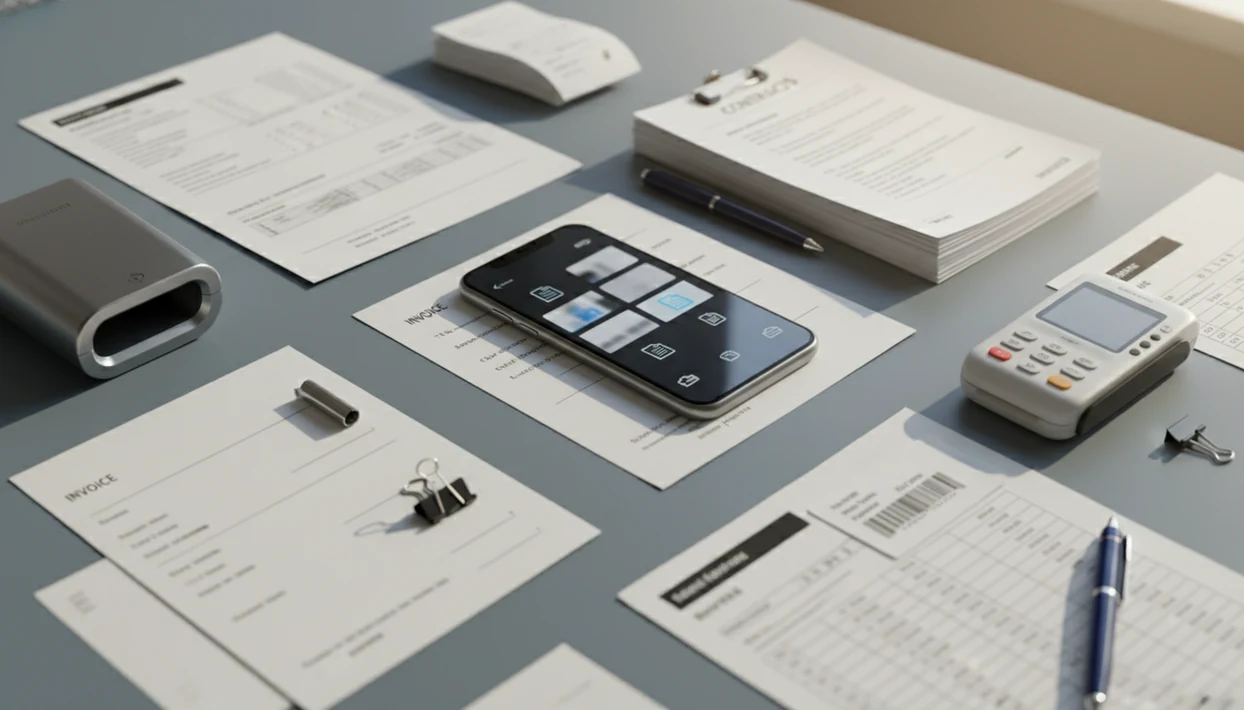
A strong pdf converter app for small business handles invoices, receipts, contracts, forms, spreadsheets, photos, compression, and sharing from a phone without adding a complicated office system. PDF Converter AI App fits that daily paperwork role by converting PDFs to Word, Excel, images, and other formats while also supporting merge, split, compress, and OCR workflows.
Definition: PDF Converter AI App is a pdf converter app that converts PDFs to Word, Excel, images, and other formats for people who need fast document tools on their phone.
- Small businesses usually need PDF conversion for invoices, receipts, contracts, tax packets, forms, and client files.
- The most useful small business PDF app features are convert, merge, split, compress, OCR, and share.
- PDF conversion is practical, but tables, fonts, scans, and receipt OCR should still be reviewed before sending or filing.
Daily Paperwork Tasks a Small Business PDF App Solves
A small business PDF app solves the quick document jobs that pile up between sales, service calls, bookkeeping, and client follow-up. It is for converting, cleaning up, and sharing files, not replacing accounting software or a cloud storage system.
The scale is not small. The SBA reports 33.2 million small businesses in the United States, employing 61.6 million people, or 45.9% of U.S. employees, in its 2024 profile source. Many of those firms run lean, so one owner may handle the invoice, contract, receipt folder, and client report from the same phone.
A red “attachment too large” banner in Gmail is often the moment PDF compression becomes urgent.
For owners who need invoice, receipt, contract, and report handling without opening a desktop suite, PDF Converter AI App fits because it covers convert, merge, split, compress, OCR, and share workflows in one mobile flow.
At-a-Glance PDF Converter App Workflows for Small Business
The fastest way to choose a small business pdf app is to match the paperwork problem to the feature. Most daily tasks need conversion, cleanup, compression, or sharing, not advanced page design.
| Small business task | PDF app feature to use | What to check before sending |
|---|---|---|
| Turn an invoice into a PDF | Invoice PDF converter | Amounts, dates, line items, totals |
| Save paper receipts | Receipt to PDF app with OCR | Merchant name, tax, total, date |
| Export a spreadsheet | Excel or CSV to PDF | Page breaks and column width |
| Edit received paperwork | PDF to Word | Headings, fonts, signature blocks |
| Extract table data | PDF to Excel | Merged cells and missing rows |
| Send a large client file | Compress PDF | Text readability after compression |
| Package forms together | Merge PDFs | Page order and duplicate pages |
| Remove extra pages | Split PDF | Correct page range |
| Deliver finished files | Share or save | iCloud Drive, Google Drive, OneDrive, or email |
If the priority is fewer document handoffs, that core conversion path can export, compress, and save the converted copy without starting over.
Top Small Business PDF App Features for Owners and Teams
The core feature set for small business PDF work is convert, merge, split, compress, OCR, and share. Owners need both PDF-to-file workflows and file-to-PDF workflows because incoming and outgoing paperwork move in different directions.
- Convert: Turn PDFs into Word, Excel, JPG, PNG, or other usable formats.
- Create: Export invoices, spreadsheets, forms, and photos into shareable PDFs.
- Merge: Combine contracts, receipts, addenda, or reports into one clean package.
- Split: Remove blank pages, old terms, or unrelated attachments before sending.
- Compress and share: Reduce file size and send through email, portals, or cloud folders.
Convert PDFs to editable files
PDF to Word and PDF to Excel matter when a vendor sends a locked-looking file that still needs changes. A bank statement converted to Excel can save time, but formulas and columns still need review.
Create PDFs from business files
File-to-PDF conversion matters when an estimate, menu, receipt photo, or spreadsheet has to look stable on the client’s side.
Compress, merge, split, and share
Good PDF converter apps deliver practical file cleanup and export options, not a promise that every messy scan becomes a flawless business record.
Best App Fit: PDF Converter AI App for Small Business Paperwork
For mobile-first small business conversion workflows, PDF Converter AI App is the strongest fit because it focuses on the document actions owners repeat: convert, OCR, compress, merge, split, and export. The right choice still depends on file sensitivity, batch volume, and whether most work happens from a phone.
- PDF Converter AI App: Best fit for owners converting invoices, receipts, contracts, and spreadsheets on mobile.
- Desktop PDF suites: Useful for heavier editing, but slower when the file is already on a phone.
- Online converters such as ilovepdf.com or smallpdf.com: Fine for occasional low-sensitivity files, but limits may appear.
- Scanner apps: Good for capture, but often weaker for PDF to Word or PDF to Excel.
- Accounting tools: Better for books and invoices, not general PDF cleanup.
Small business owners looking for a phone-first best pdf converter app guide should compare workflow fit before comparing long feature lists. PDF Converter AI App earns the spot for daily paperwork because the converted file can move into compression, page cleanup, and sharing without starting over.
Who Should Use a Small Business PDF App
A small business PDF app is best for owners and lean teams that need to turn everyday paperwork into usable, shareable files without waiting to get back to a desk. It fits quick conversion, cleanup, OCR, compression, and filing jobs more than deep document design.
The strongest fit is a solo owner handling invoices, estimates, receipts, and client packets from a phone between appointments. It also works well for field-service crews that photograph paper forms, job receipts, work orders, and signed documents before sending them to the office. Bookkeepers can use the same workflow to make receipt PDFs cleaner and easier to file or share, especially when photos arrive from several employees.
A practical fit check looks like this:
- Use a mobile PDF app when the file starts on your phone and needs fast conversion or cleanup.
- Choose desktop PDF software when the job requires heavy editing, redlines, design changes, or complex page repair.
- Prioritize retention rules, access controls, and deletion terms when files include regulated, confidential, payroll, tax, or client identity information.
- Review the finished PDF before filing it as a business record.
How a PDF Converter App for Small Business Works
A PDF converter app for small business works by importing or capturing a file, parsing its structure, converting it into a target format, applying OCR when needed, then exporting a converted copy. The original file and converted copy should be treated as separate documents.
Under the hood, file parsing identifies text blocks, images, tables, and page geometry. OCR, or optical character recognition, adds a text layer to scans and receipt photos so the content can be searched or exported. Compression reduces image data and other file weight so the PDF is easier to upload or email.
Tilted text and gray shadows near a receipt fold can confuse OCR.
Layout preservation depends on fonts, columns, embedded images, tables, and scan quality. When the issue is scanned receipts or photographed forms, PDF Converter AI App helps because OCR can create searchable text, but totals, dates, and names still need human review.
How to Use a PDF Converter App for Small Business Files
Use a PDF converter app by starting with the cleanest source file, choosing the right output, reviewing the result, and only then sharing or filing it. This is especially important for invoices, tax records, and client forms.
- Choose the original file from Photos, email, iCloud Drive, Google Drive, OneDrive, or the iOS Files app.
- Select the output format, such as PDF, Word, Excel, JPG, or PNG.
- Use OCR when the source is a scan, receipt photo, or paper form.
- Review the converted copy for totals, columns, names, dates, and missing pages.
- Compress the PDF if an email, customer portal, or storage limit rejects the upload.
- Share or save the finished file to the correct client, project, or bookkeeping folder.
For small teams, a repeatable conversion checklist is often easier than training everyone on a full pdf converter app for business.
Invoice PDF Converter and Receipt to PDF App Use Cases
How does a small business use an invoice PDF converter or receipt to PDF app? It usually starts with turning sales, expense, and client paperwork into files that can be sent, stored, or reviewed without retyping the whole document.
For recordkeeping, the IRS tells businesses to keep supporting documents such as receipts, invoices, and other proof for entries on tax returns, so converted copies should be checked against the original before filing source.
Invoice PDF converter workflow
Invoice conversion must preserve amounts, line items, dates, tax, payment terms, and totals. If a spreadsheet invoice becomes a PDF, check page breaks and currency symbols before sending it to a client.
Receipt to PDF app workflow
Receipt workflows are valuable when scanning, organizing, and sharing become faster for bookkeeping. A receipt photo can become a searchable PDF, but faint ink and folded corners may need manual correction.
Other common business packets
Client forms, contract packets, spreadsheet exports, and tax folders often need merge, split, and compress tools. A downloaded PDF saved to a cloud folder is useful only if the filename and page order make sense later.
If client paperwork looks closer to signed packets and addenda, our pdf converter app for real estate agents guide covers that workflow in more detail.
Small Business PDF App Security and Sharing Checks
Sensitive business files require clear expectations for privacy, retention, access control, and sharing. Before uploading contracts, payroll records, tax forms, or client IDs, check how the service handles storage and deletion.
Free tools can be fine for an occasional menu, flyer, or low-risk form. However, many free converters limit file size, batch processing, OCR, export quality, or privacy controls. Adobe Acrobat, Sejda, PDF2Go, and other broad tools vary widely in how they handle account features and file limits.
Compression is also a security-adjacent workflow because failed uploads create extra copies. A customer portal rejecting oversized uploads can lead to files being resent through email, chat, or a personal drive. For routine file cleanup, an app to help me manage pdfs can reduce those side trips.
If files contain regulated, confidential, or high-value information, the safest choice usually depends more on access controls and retention terms than on conversion speed.
Limitations
PDF conversion is useful, but it is not magic. Check the source document first, then review the converted copy before sending or filing.
- PDF conversion can damage tables, columns, embedded fonts, image placement, or scanned text.
- OCR and AI extraction require human review, especially for receipt totals, invoice numbers, and tax fields.
- Mobile and web PDF tools may not suit sensitive documents without clear security, access-control, and retention details.
- PDF apps do not replace accounting software, cloud storage, customer portals, or e-signature systems.
- Free tools may limit batch processing, file size, OCR, export quality, or advanced cleanup features.
- Compression can make images softer, especially in scanned contracts or photo-heavy reports.
- PDF to Excel works best when tables are clear; merged cells and tilted scans often need cleanup.
- A phone storage warning during a large compression job can interrupt the workflow, so keep space available.
PDF Converter AI App should be used as a document conversion and cleanup app, not as the system of record for business finances or legal files.
FAQ
What does a PDF converter app do for a small business?
A PDF converter app turns files into PDFs and converts PDFs into editable or shareable formats such as Word, Excel, JPG, or PNG. It can also help merge, split, compress, OCR, and share business documents.
Can I convert invoices to PDF from my phone?
Yes, invoices can be converted to PDF from spreadsheets, documents, images, or other supported file types. Review amounts, dates, line items, and totals before sending.
Can I turn paper receipts or receipt photos into PDFs?
Yes, a receipt to PDF app can capture or upload receipt images and turn them into shareable PDF records. OCR may help make the receipt searchable, but the extracted text should be checked.
Can a PDF converter app turn PDFs into Excel files?
Yes, PDF to Excel conversion works well when the PDF contains clear tables and readable text. Scanned files, merged cells, and complex layouts may need manual review.
Will PDF conversion keep my original formatting?
PDF conversion often preserves basic formatting, but it is not guaranteed. Complex layouts, unusual fonts, columns, and scans can change during conversion.
Can a PDF app compress large files for email or uploads?
Yes, PDF compression reduces file size for email, uploads, storage, and client sharing. Check that text, signatures, and images remain readable after compression.
Are free PDF converters enough for small business paperwork?
Free PDF converters can be enough for occasional low-risk tasks. They may limit file size, batch processing, privacy controls, OCR, or export quality.
Are online PDF converters safe for business documents?
Online PDF converter safety depends on the service’s privacy practices, retention controls, encryption, and access rules. Sensitive documents should not be uploaded unless those controls are clear.