
PDF Converter App vs Adobe Acrobat for Mobile PDF Tasks

For most everyday phone workflows, a focused mobile converter is the better pick in a pdf converter app vs adobe acrobat comparison because it is faster for PDF-to-Word, PDF-to-Excel, image conversion, OCR, merge, split, and compression tasks. The conversion-first option fits that use case, while Adobe Acrobat is stronger when you need advanced editing, redaction, forms, signatures, and enterprise controls.
Definition: PDF Converter AI App is a pdf converter app that converts PDFs to Word, Excel, images, and other formats for people who need fast document tools on their phone.
- Choose a focused mobile converter for quick mobile conversions, OCR, merging, splitting, and compressing without a heavy desktop-style workflow.
- Choose Adobe Acrobat for advanced PDF editing, redaction, form building, e-signature workflows, and enterprise-grade document controls.
- The real decision is not which app has more features, but which one completes your most common PDF task with the least time, cost, and friction.
PDF converter app vs adobe acrobat, side by side
Side-by-side captures of the compared products. Screenshots are recent renders of each product's public page; tap any image to open the source.
PDF Converter App vs Adobe Acrobat At-a-Glance Comparison
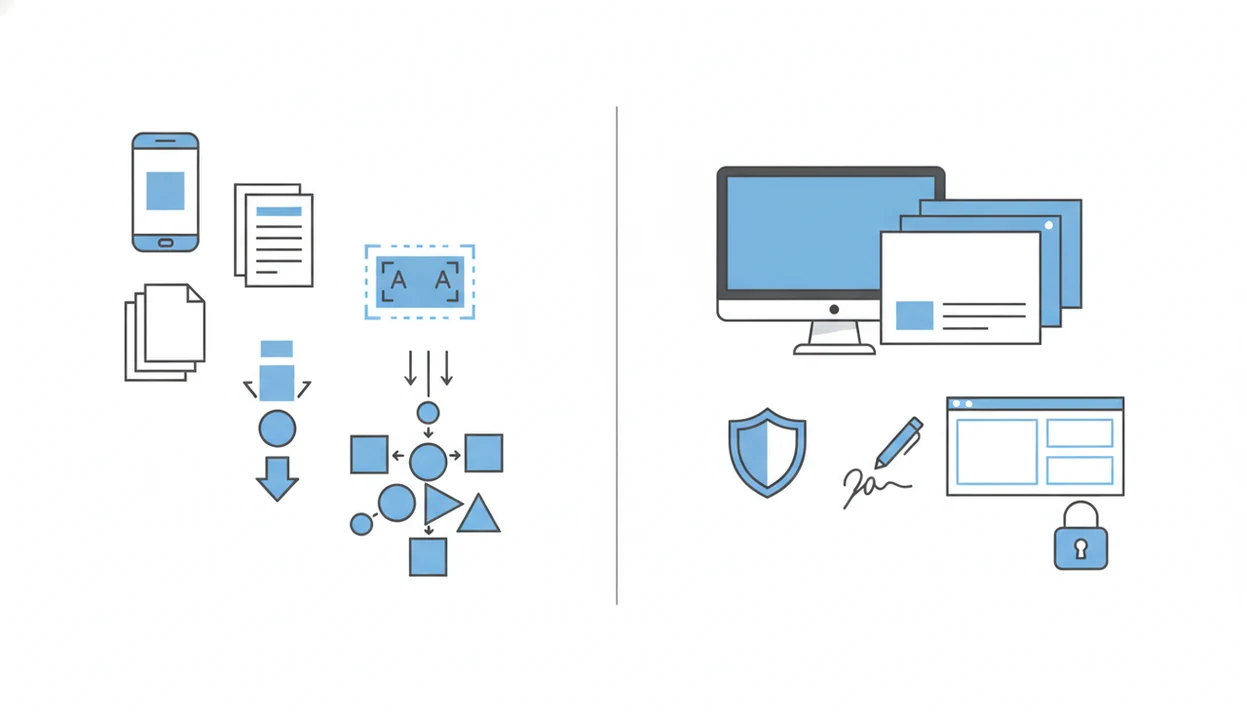
Adobe Acrobat is broader, while PDF Converter AI App is narrower and faster for conversion-first mobile work. The practical winner depends on whether you need a full PDF suite or a quick phone workflow.
| Task or factor | PDF Converter AI App | Adobe Acrobat | Practical winner |
|---|---|---|---|
| Mobile speed | Built for quick import, convert, and share flows | Strong, but more menu-heavy | PDF Converter AI App |
| Formats | Word, Excel, PowerPoint, JPEG, PNG, images | Word, Excel, PowerPoint, JPEG, PNG, images | Tie for common formats |
| OCR | Useful for searchable PDFs and editable text | Strong OCR inside a wider suite | Depends on document |
| Editing depth | Basic conversion-adjacent tools | Advanced editing, forms, redaction | Adobe Acrobat |
| Privacy controls | Check app policy and processing rules | Stronger enterprise options | Adobe Acrobat |
| Price fit | Often better for occasional tasks | Better for daily PDF management | Depends on usage |
Everyday mobile conversion tasks usually favor the conversion-first option because the workflow starts with the file and ends with the export, not a full document-management screen.
5 Facts About Acrobat vs PDF Converter Mobile Workflows
- Adobe Acrobat is an all-in-one PDF platform for creating, editing, signing, protecting, converting, and organizing PDFs across desktop, web, and mobile.
- Standalone converter apps usually focus on conversion, OCR, merge, split, compression, and quick sharing.
- Acrobat can preserve complex layouts well, but it can feel heavy when you only need to turn `biology-reading-week-4.pdf` into Word on a phone.
- Acrobat subscriptions often cost more than freemium or low-cost converter apps, especially for users who convert files only a few times per month.
- Mobile-friendly PDF tools matter because Pew Research Center reports that smartphone ownership among U.S. adults is now widespread, with 90% reporting smartphone ownership in 2023: https://www.pewresearch.org/internet/fact-sheet/mobile/
Students trying to copy OCR text into study notes usually fit a focused mobile converter because it keeps the path short: import, recognize text, export, then paste into the note app.
How a Mobile PDF Converter App Works
A mobile PDF converter app works by importing a file, analyzing each page, detecting text, images, and tables, then exporting the content into a chosen format. If the file is scanned, OCR adds a text layer so the document can become searchable or editable.
Layout fidelity depends on document structure. A clean digital PDF with embedded fonts is easier than a scan with gray shadows near the spine and tilted text. Tables, columns, unusual fonts, stamps, and low-resolution photos can all confuse conversion engines. AI-assisted conversion can improve text recognition and structure detection, but it cannot guarantee exact reconstruction of every page.
Good AI PDF converter apps deliver faster phone-based conversion and cleanup, not guaranteed perfect conversion of every contract, table, scan, and design-heavy brochure. For more on OCR-heavy workflows, the ai pdf converter app guide covers scanned files and tables in more detail.
How to Use a PDF Converter App for Mobile Tasks
Use a mobile converter when the goal is to finish one clear document task, not manage a large archive. Check the original file first, especially if it contains financial, legal, medical, or identity information.
- Import the PDF from iCloud Drive, Google Drive, OneDrive, the iOS Files app, or your Android file picker.
- Scan the paper page if needed, then crop the edges before conversion.
- Choose Word, Excel, PowerPoint, JPEG, PNG, or another image output.
- Run OCR when the PDF is scanned or when you need searchable text.
- Review the converted layout, especially tables, columns, totals, and signatures.
- Compress or merge the finished file, then export a converted copy before sharing.
When the red “attachment too large” banner appears in Gmail or Outlook, compress before sending. Small step. Big difference.
How to Use Either PDF Option for the Same Mobile Task
Use both apps on the same source PDF when you want a fair mobile comparison. The goal is not to test every feature; it is to see which option finishes your real task with less friction and a cleaner export.
- Open the same PDF in PDF Converter AI App and Adobe Acrobat, preferably from the same cloud folder or phone storage location.
- Run one matching task in both apps, such as PDF-to-Word for a reading packet or PDF-to-Excel for a table-heavy statement.
- Count the taps, export time, sign-in prompts, upgrade screens, and any paywall that appears before you can save or share the file.
- Inspect the exported document for layout shifts, OCR mistakes, broken tables, missing images, blurry graphics, and totals that no longer line up.
- Choose the converter app if the export is accurate enough and faster to share, but switch to Acrobat when review comments, redaction, signatures, permissions, or team governance become part of the job.
This small side-by-side test beats guessing from feature lists because it uses the document you actually need to send.
Where PDF Converter AI App Wins as an Adobe Acrobat Alternative
Does PDF Converter AI App work as an Adobe Acrobat alternative for everyday mobile conversion? Yes, when the job is PDF-to-Word, PDF-to-Excel, image export, OCR, merge, split, or compress from a phone.
A narrower tool can be easier than navigating a full PDF suite. The conversion-first option is built around phone-first actions like scanning a paper form, extracting text, converting to Word, compressing the finished PDF, and sending it from the same device. A scanned form pinched between fingers is not the moment most people want a desktop-style menu.
For mobile workers who need to update `LeaseAddendumFinal.pdf` between appointments, a focused mobile converter fits because it supports PDF-to-Word conversion, compression, and sharing in one conversion workflow. If Word output is the main task, the pdf to word converter app guide explains what affects formatting.
Where Adobe Acrobat Wins in a PDF App Comparison
Adobe Acrobat wins when the PDF itself is the work product, not just the file you need to convert. It is the safer choice for advanced editing, redaction, forms, signatures, protection, document organization, and enterprise governance.
Complex layouts also favor Acrobat. Legal packets, regulated business files, compliance-heavy teams, and high-volume document workflows often need auditability and controls that lightweight converters do not provide. Adobe reported $15.86 billion in fiscal 2024 Digital Media revenue, the segment that includes Creative Cloud and Document Cloud, according to Adobe's FY2024 Form 10-K: https://www.adobe.com/content/dam/cc/en/investor-relations/pdfs/ADBE-FY24-10-K.pdf It does not prove that every Acrobat workflow is better for every user.
If the priority is controlled PDF editing rather than fast conversion, Adobe Acrobat earns the spot because it combines redaction, form tools, signatures, permissions, and document organization in one suite.
Pricing, Privacy, and Policy Differences in Acrobat vs PDF Converter
Pricing is often the deciding factor in an acrobat vs pdf converter choice. Occasional conversions usually favor freemium or lower-cost converter apps, while daily advanced PDF management can justify Acrobat.
| Question | What to check | Why it matters |
|---|---|---|
| Cost per workflow | Monthly plan, free tier, export limits | A low monthly price may still be too much for two conversions |
| Cloud processing | Whether files upload for OCR or conversion | Sensitive files may need stricter handling |
| File retention | Deletion rules and storage period | Old uploads can create risk |
| Encryption | In transit and at rest | Policy language matters |
| Account requirement | Guest use versus sign-in | Some teams need traceability |
In Adobe’s 2022 Future of Time study, 70% of workers said they would consider leaving for better tools that reduce repetitive work. Source: Adobe, Future of Time study: https://business.adobe.com/blog/basics/time-the-new-business-currency Because the study is about workplace tool friction broadly, not PDF apps specifically, it should be treated as context rather than direct proof that one PDF app is faster. That stat is not only about PDFs, but it explains why small document delays feel costly.
For occasional users, a free pdf converter app can make more sense than a subscription because the cost matches the workflow.
Evidence Behind This PDF App Comparison
This comparison is based on practical mobile workflow criteria, not a claim that one app wins every PDF task. The scoring looks at speed, format support, OCR, editing depth, privacy, and price because those are the factors that usually decide a phone-based PDF job.
For Acrobat claims, the baseline is Adobe’s official Acrobat feature pages and current pricing pages, especially where the article discusses editing, redaction, forms, signatures, plan limits, and subscription value. For converter-app claims, the baseline is mobile app store listings, in-app feature descriptions, and product documentation that describe supported exports, OCR, compression, merge, split, and sharing tools.
To keep the comparison fair:
- Check official vendor pages first for advertised features, plan names, and policy language.
- Compare the same task on the same type of file, such as PDF-to-Word, OCR, or compression.
- Separate vendor claims from hands-on observations like tap count, menu friction, export review, and paywall timing.
- Review the output for layout shifts, OCR errors, table damage, and missing images.
- Recheck pricing and privacy terms because plans, limits, retention rules, and included tools can change.
Results can also change when file quality, scan clarity, camera angle, language, fonts, or plan access changes.
Best PDF App Choice by User Type
Choose the converter app for fast mobile conversion; choose Acrobat for advanced control. That binary rule solves most pdf app comparison confusion.
Student or casual user: Pick PDF Converter AI App for lecture PDFs, OCR text, image exports, and quick Word conversions. A group chat asking for page three needs speed, not redaction tools.
Mobile worker: Pick the conversion-first option when you convert, compress, merge, and send files from a phone or tablet. The pdf converter app for iphone page covers iOS-specific file locations.
Small business owner: Pick a focused mobile converter for bank statements converted to Excel, simple packets, and compressed attachments. Choose Acrobat if forms, signatures, and permissions are daily work.
Power editor: Pick Adobe Acrobat for deep editing, redaction, form building, and complex layout repair.
Enterprise team: Pick Adobe Acrobat when governance, account controls, legal review, and compliance policies matter more than quick export speed.
Common Myths About PDF Converter App vs Adobe Acrobat
Myth: All PDF converter apps match Acrobat conversion quality. Fact: conversion quality varies by layout, fonts, scan quality, tables, and OCR engine.
Myth: Everyone who converts PDFs needs Acrobat Pro. Fact: many users only need Word, Excel, image export, merge, split, and compress tools.
Myth: Acrobat is desktop-only. Fact: Acrobat has mobile and web tools, although specialized converters may feel faster for tap-and-go phone tasks.
Myth: Every budget PDF converter has enterprise-grade security. Fact: privacy policies, retention rules, encryption, and account controls differ widely.
Myth: A converter should replace manual review. Fact: you still need to check totals, names, dates, page order, and final formatting before sharing.
On Android, the file picker and storage permissions can change the experience, so the pdf converter app for android guide is useful for device-specific steps.
Limitations
No PDF app comparison can promise the same result for every file. The source document still sets the ceiling.
- Standalone converter apps may struggle with highly complex layouts, heavy graphics, dense tables, unusual fonts, and low-resolution scans.
- AI OCR can misread handwriting, stamps, signatures, columns, faint text, and tilted pages.
- Adobe Acrobat may be more than casual users need, but it can be safer for regulated, legal, or compliance-heavy workflows.
- Mobile conversion quality depends on phone camera quality, file size, internet connection, and app processing limits.
- Large compression jobs can trigger a phone storage warning before the export finishes.
- Pricing, free tiers, storage rules, and feature sets can change over time.
- Sensitive files require checking privacy policies before upload, OCR, cloud processing, or sharing.
The best pdf converter app guide can help compare broader mobile options, but private documents still need a policy check before upload.
FAQ
Is Acrobat better than PDF converter apps?
Adobe Acrobat is better for advanced editing, redaction, forms, signatures, and compliance-heavy work. PDF converter apps are often better for quick mobile conversions.
Can a PDF converter app replace Acrobat?
A PDF converter app can replace Acrobat when your main tasks are converting, OCR, merging, splitting, and compressing. It cannot fully replace Acrobat for advanced editing, redaction, enterprise controls, or complex forms.
Which app converts PDFs faster on a phone?
A focused converter app is usually faster for simple phone workflows because it opens around import, format choice, and export. Acrobat may take more steps because it includes a wider PDF toolset.
Is Adobe Acrobat free to use?
Adobe offers some free Acrobat tools and mobile features, but many advanced Acrobat features require a paid plan. Pricing and included features can vary by region and plan.
Do PDF converter apps support OCR for scanned documents?
Many PDF converter apps support OCR for scanned documents. Accuracy depends on scan clarity, text angle, resolution, shadows, handwriting, and document language.
Which app is better for converting PDFs to Excel?
PDF Converter AI App can be a good fit for quick PDF-to-Excel table extraction on a phone. Acrobat is safer for complex tables, multi-page reports, and business files that need careful layout handling.
Are PDF converter apps safe for private files?
PDF converter apps can be safe for private files if their policies fit your needs. Check file retention, cloud processing, encryption, deletion rules, and account requirements before uploading sensitive documents.
Does Adobe Acrobat work on phones?
Yes, Adobe Acrobat works on phones through mobile apps and web tools. The difference is that Acrobat offers a broader suite, while converter apps often focus on faster mobile conversion steps.
What is the best Adobe Acrobat alternative for mobile PDF conversion?
The best Adobe Acrobat alternative for mobile PDF conversion is one that handles PDF-to-Word, PDF-to-Excel, image export, OCR, merge, split, and compress tasks quickly. PDF Converter AI App fits that use case when advanced Acrobat controls are not required.